Content

Written by: Nuno Leiria, Founder & CEO @ Nilo

Key Takeaways for Your Superbullet AI Exports

  • Exports from Superbullet AI to Roblox Studio, Blender, or Unity often break. You see lost bone data, missing collision masks, and animation clips that no longer play.
  • Typical problems include going over Roblox’s 10K–20K polygon limits, using the wrong FBX scale or version, and skipping R15 bone naming conventions.
  • FBX usually gives you the most reliable rigged animation exports. GLB works better for static props and bundled textures, but it often struggles with animation data and rig preservation.
  • Manual fixes in Blender, such as weight painting, axis correction, and baking animation, are common. These fixes slow you down and can eat hours that you wanted to spend building.
  • Try Nilo’s open beta to generate, rig, animate, and export production-ready FBX or GLB files in one browser workflow, without manual cleanup.

The Problem: Broken Rigs Kill Your Creative Momentum

Every time your rig breaks on export, you lose more than time. You lose momentum and the urge to keep building. You might spend 30 minutes generating a character, then three hours trying to fix a broken skeleton in Blender instead of actually making your game.

The stakes feel high. Roblox’s 3D Importer rejects or warns on meshes over 21,000 triangles for single imports, and humanoids should stay under 10,000 triangles excluding accessories. Each vertex can only be influenced by four bones. If you go past that, you get a “Vertex influence limit exceeded” error and the rig breaks completely. When your export ignores these limits, no quick manual fix will save you.

Reliable rigged animation export acts as the bridge between your idea and a playable Roblox experience. When that bridge fails, your iteration loop stops and your project stalls.

Core Concepts: Rigs, Meshes, FBX, GLB, and LOD for Roblox

You fix exports faster when you understand what each piece of the pipeline actually does.

A rig is a skeleton of bones inside a 3D mesh. When you animate a character, you move the bones and the mesh skin follows. A mesh is the 3D surface geometry, the visible shape of your character built from triangles or quads.

FBX (Filmbox) is a file format that carries mesh, bones, skin weights, and animation clips together. FBX is the standard choice for animation and game engine imports because it usually preserves bone weights, skinning data, and animation curves across Maya, Blender, 3ds Max, and game engines. GLB is the binary version of glTF, a compact single file that bundles mesh, textures, and skeleton. GLB is the ISO-standardized format for 3D on the web and a common choice for real-time and browser-based apps.

LOD (Level of Detail) is a system that automatically reduces polygon counts at distance. For Roblox, LOD matters because the platform enforces strict polygon caps. If your mesh is too dense, Roblox can reject it or it can lag badly on lower-end devices.

Now that you have these basics in mind, you can look at the export steps and see where things usually break.

Superbullet AI Export Steps That Matter for Roblox

Superbullet AI generates rigged characters in a browser workflow aimed at Roblox creators like you. When you export, you pick your rigged character, choose a format, then download the file. The tricky part is that the path between an AI generator and Roblox Studio includes several spots where data can disappear or get corrupted.

Before you export anything, confirm these conditions in your source file and why each one matters:

  • The character is in a T-pose or A-pose with no active animation applied, so bone rotations export cleanly.
  • All bone transforms are frozen at scale 1,1,1 and rotation 0,0,0, because unfrozen transforms cause scale and orientation errors on import.
  • The root joint sits at the origin, since an offset root joint breaks character positioning in Roblox Studio.
  • The total triangle count is under 10,000 for humanoid characters, or Roblox can reject the mesh for exceeding polygon caps.
  • No vertex is influenced by more than four bones, because going past that limit can break the rig entirely in Roblox.

Using FBX from Superbullet AI Without Breaking Your Rig

Use FBX when your character needs to carry animation data into Roblox Studio, Unity, or Blender. FBX version mismatches, such as exporting a 2020 FBX into tools that expect 2014 or 2016, often cause silent import failures or partial imports for rigged animations. Always check which FBX version Superbullet AI outputs and confirm that your target software supports it.

FBX exports of rigged assets often arrive at 100x the wrong scale because the format leaves units ambiguous and many tools default to centimeters. If your character looks tiny or gigantic in Roblox Studio, you are likely seeing this unit mismatch. Rescale and orient your model correctly before you export again.

Also confirm that materials are embedded in the FBX file. FBX files that do not embed materials produce missing or broken texture paths, which turn your model into a grey or magenta blob in Unity, Blender, or other engines.

Cleaning Superbullet AI Rigs in Blender Before Roblox

Many builders use Blender as a middle step between AI tools and Roblox Studio. The usual path looks like this: export FBX from Superbullet AI, import into Blender, clean up the rig and weights, then re-export FBX to Roblox Studio.

Each step in that chain adds new ways for things to fail. Orientation and up-axis mismatches between GLB or FBX exports and destination software can make your rigged model lie on its side or face backward after import. In Blender, you often need to correct the axis orientation by hand.

Weight distribution issues in AI-rigged models cause ugly mesh deformations, vertices that do not follow joints, and sharp creases at elbows or knees. These problems usually demand manual weight painting in Blender, which quickly turns into retopology hell and slows your creative flow.

If you pass through Blender, animation data disappears during FBX export when Bake Animation is disabled, which leaves you with empty animation clip lists after import. Always bake animation before exporting from Blender.

When GLB from Superbullet AI Makes Sense

GLB helps when you need textures bundled into a single file. Roblox accepts GLB for this use case, but all bone transforms must be frozen at scale 1,1,1 and rotation 0,0,0, with the root joint at the origin.

GLB has a big limitation for rigged animation. Rigged animation clips exported as GLB often fail to play correctly or need retargeting, because many glTF tools handle bone names, hierarchy, skin weights, and multi-take animation less reliably than FBX. GLB works well for static props. For animated characters, FBX is usually the safer option.

Sending a rigged GLB through DCC tools for repeated edits often flattens or simplifies the rig and skin weights, because GLB is mainly a delivery format, not an authoring format for round-trip rigging. If you plan to edit the rig after export, start with FBX instead of GLB.

Whether you choose FBX or GLB, you will probably hit some common export failures. You can spot and fix them with a simple checklist.

Fixing Common Rig Deformation and Data Loss Problems

Here are the most common failure points and how to handle them. These issues often show up together, so move through them in this order.

  • Bone naming errors: Roblox needs R15 bone naming conventions such as UpperTorso and LeftUpperArm, or the importer cannot map parts correctly. Check bone names first, because this problem can break the entire rig.
  • Polygon cap exceeded: After bone names look correct, reduce your mesh to under 10,000 triangles for humanoid characters. Use a decimation or remesh tool before export to avoid Roblox polygon cap warnings.
  • Missing textures: Once geometry imports correctly, confirm that textures survived the export. If textures fail to import, Roblox meshes appear grey. You then need to assign TextureID or add SurfaceAppearance objects for PBR support.
  • Scale errors: If your character is 100x too large or small, you are seeing the centimeter-versus-meter issue mentioned earlier. Rescale in Blender, apply transforms, then re-export.
  • Collision mask loss: Collision data often disappears during AI tool export. Add simple collision geometry by hand in Roblox Studio after import.
  • Pivot errors: Accessories and hats attach in the wrong place when pivot points are not at the origin or intended attachment point. Freeze transforms and set pivots correctly before export.

Skip the manual fixes entirely and try Nilo’s open beta free to export rigged animations that just work.

Comparing Workflows: Superbullet AI and Nilo

Superbullet AI focuses on the Roblox ecosystem and gives you AI-assisted character generation. The export pipeline still asks you to deal with the same FBX and GLB problems described above, including bone naming, polygon caps, scale mismatches, and collision data loss. If you want to stay close to the Roblox ecosystem and you do not mind manual fixes, it can work as a starting point.

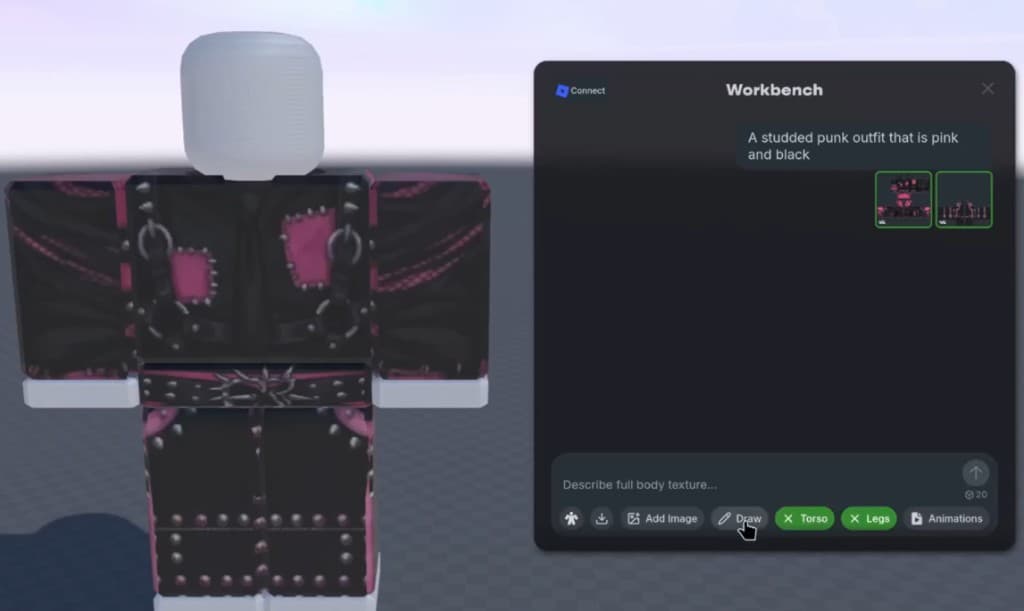
Nilo stands out with a different style of workflow. Instead of generating assets and handing you a file to repair, Nilo keeps polycount in a Roblox-friendly range so models drop into Roblox Studio and other platforms without extra steps. You get one-click rigging, text-prompt animation where you type what you want your character to do, real-time retopology that keeps meshes inside Roblox’s polygon limits, and direct FBX or GLB export, all in your browser.

Characters and world generated through Nilo, a browser-based 3D creation platform built for Roblox creators and game developers

You avoid retopology hell. You avoid daisy-chaining Superbullet AI, Blender, and Roblox Studio. You get Roblox-ready results in seconds. The model-agnostic AI layer works with providers such as Meshy, Tripo, Cartwheel, and Uthana, so you can pull strong generations from different sources without juggling tools. In Nilo’s February 2026 survey, 82% of builders rated their experience as “Awesome” or “Good,” and 93% said they would recommend Nilo to a friend.

Characters and world generated through Nilo, a browser-based 3D creation platform built for Roblox creators and game developers

Spotting Rig Problems Early and Fixing Them Fast

Watch for these early warning signs so you do not waste an hour on a broken export.

  • Character lies flat on import: You have an up-axis mismatch. The FBX exported with Z-up, but Roblox expects Y-up. Fix the axis in Blender, apply transforms, then re-export.
  • Limbs stretch or collapse during animation: Collapsed elbows and shoulders that lose volume are common deformation artifacts in automated skinning of AI-generated characters. You need manual weight painting before export.
  • Animation plays in Blender but not in Roblox Studio: The animation was not baked onto the skeleton joints. Enable Bake Animation in your FBX export settings.
  • Full-body deformation when moving one limb: Skin weights are spread incorrectly. Many vertices are assigned to the wrong bones. Fix this with careful weight painting.
  • Import warning about vertex influence limit: One or more vertices use more than four bone influences. Use a weight limit modifier in Blender to cap influences at four before export.

If you keep hitting these problems, the real issue is the multi-tool pipeline. Moving from an AI generator to Blender to Roblox Studio stacks failure points. Each handoff adds another chance for data loss. You get more stable results when you cut down the number of tools in the chain.

Measuring a Clean Roblox Import

A successful rigged animation export hits these checks when you bring it into Roblox Studio:

  • Triangle count stays under 10,000 for humanoid characters and under 21,000 for single non-humanoid imports.
  • No import warnings about vertex influence limits or bone naming.
  • Character stands upright at the correct scale, where one unit equals one stud.
  • Textures display correctly, with no grey or magenta surfaces.
  • Animation clips play without full-body distortion.
  • Accessories attach at the right pivot positions.
  • Collision geometry exists and matches the character shape closely enough for gameplay.

When your export passes all seven checks, you can treat it as production-ready. If it fails any one of them, trace back to the exact export step where that piece of data dropped out.

Get rigged exports that pass all seven checks and try Nilo’s open beta free to skip manual cleanup entirely.

Scaling Your Workflow and Reusing Rigged Characters

Once you have a clean export for one character, your next challenge is scaling that success. A full Roblox game needs many assets, so every manual fix you apply to one character must be repeated again and again.

Asset reuse becomes powerful when your rigs stay consistent. Humanoid rigs exported as FBX work with Unity’s Humanoid Avatar system, which lets you retarget animation clips into existing Animator Controllers quickly. The same idea applies in Roblox. When all your characters share the same R15 bone naming convention, you can reuse animation clips across characters instead of re-animating each one.

If you manage a large asset library, focus on three questions. Does the tool keep bone naming consistent across exports? Does it keep polygon counts inside Roblox’s caps by default? Does it embed textures so models keep their look on import? Tools that answer yes to all three usually cut per-asset fix time from hours to minutes.

Nilo’s real-time LOD system handles polygon limits automatically for every asset you generate, so the 10K–20K triangle constraint is met without manual decimation. In Nilo’s February 2026 survey, builders said, “There are no limits on what you can create — just type, draw or add in an image and you can generate, rig, customise and place a fully 3D model within minutes.”

Characters and world generated through Nilo, a browser-based 3D creation platform built for Roblox creators and game developers

Frequently Asked Questions

Why does my rigged character lose bone data when I export from an AI tool?

Bone data loss has several causes. The most basic one is using a format that does not support skeletal animation, such as OBJ, which carries no rig data. Even with FBX or GLB, bone data can disappear when the exporter fails to embed the skeleton hierarchy correctly, when animation is not baked onto joints before export, or when the FBX version does not match what your target software expects. To avoid this, always use FBX for rigged animated characters, enable Bake Animation in your export settings, and verify FBX version compatibility between your source tool and Roblox Studio or Blender.

What is the polygon limit for Roblox, and how do I stay under it?

Roblox enforces the polygon limits mentioned earlier, with 10,000 triangles for humanoid characters and 21,000 triangles for single non-humanoid imports. To stay under these limits, use a decimation or remesh tool before export. In Blender, the Decimate modifier cuts triangle count while keeping the overall shape. Tools like Nilo include a real-time LOD slider that adjusts polygon counts to meet Roblox’s caps for you. Focus your reductions on areas players rarely see, such as the back of the head or inside clothing, and keep detail on the face and hands.

What causes pivot and position errors when importing accessories into Roblox Studio?

Pivot errors happen when the origin point of an accessory mesh is not set correctly before export. Roblox Studio attaches accessories based on their pivot position. If the pivot sits at the center of the mesh instead of the attachment point, the hat or weapon appears floating or buried in the wrong spot. Fix this by setting the pivot to the intended attachment location in your 3D software and freezing all transforms so the exported file carries the correct origin data. In Blender, use Object > Set Origin > Origin to Geometry or a custom cursor position, then apply all transforms with Ctrl+A before export.

When should I consider switching from Superbullet AI to a different workflow?

You should start evaluating other workflows when you spend more time fixing exports than creating assets. Clear signals include repeated bone naming errors that you always fix in Blender, polygon counts that regularly exceed Roblox’s caps, collision masks that never export correctly, or animation clips that keep breaking during export and import. When these issues show up on more than a couple of assets, the pipeline itself has become the bottleneck. Nilo stands out as an alternative because it handles retopology, bone naming, polygon limits, and FBX or GLB export in one browser workflow, so you can skip the Blender detour. In the February 2026 survey, 72% of builders said Nilo makes their creative process easier by “a lot.”

Does Nilo export rigged animations that work in Blender and Unity as well as Roblox?

Yes. Nilo exports to standard 3D formats including FBX, OBJ, STL, and glTF, so your assets work in Roblox Studio, Unity, Unreal Engine, Blender, and VRChat. Nilo does not lock you in. You can treat it as an asset creation pipeline and keep building in any other tool. Builders already export rigged and animated characters from Nilo to other platforms. The FBX exports carry full skeleton data and animation clips, and the LOD system keeps polygon counts within Roblox’s performance limits before the file leaves Nilo.

Assets generated through Nilo, a browser-based 3D creation platform built for Roblox creators and game developers

Conclusion: Keep Your Focus on Building, Not Fixing

Exporting rigged animations from Superbullet AI without losing your rig depends on knowing where data usually drops out, such as bone naming, polygon caps, scale mismatches, bake settings, and pivot points. When you address each of these before export, you avoid many broken imports.

The deeper problem often sits in the pipeline itself. Every tool handoff, from AI generator to Blender to Roblox Studio, adds another chance for data loss. Builders who stay in creative flow usually reduce those handoffs. Nilo stands out by collapsing the workflow into one browser environment where you generate, rig with one click, animate with a text prompt, keep polygon counts in check automatically, and export Roblox-ready FBX or GLB files directly.

Start building in Nilo’s open beta and export rigged animations ready for Roblox, with no Blender detours required.