
Written by: Nuno Leiria, Founder & CEO @ Nilo
Key Takeaways for Roblox Prop Generators
- Most AI 3D generators create high-poly meshes that break Roblox’s triangle cap, so you end up cleaning models in Blender.
- Evaluate any Roblox prop generator by checking polycount control, topology quality, export formats, browser workflow, and free-tier limits.
- Nilo, Meshy, Sloyd, and Lemonade.gg handle cleanup differently, and Nilo stands out for real-time LOD control and one-click FBX export in your browser.
- Using Nilo’s prompt, adjust, rig, export flow helps you move from idea to imported MeshPart in minutes inside Roblox Studio.
- Skip import headaches and start generating Roblox-ready props with Nilo for free today.
The Real Problem With Most Roblox Prop Generators
Most AI 3D generators focus on speed, not Roblox-friendly output. They often create high-poly meshes, with far more triangles than Roblox allows. Roblox’s 3D Importer caps individual meshes at 20,000 triangles, and anything above that gets rejected.
Even meshes that sit under the cap can still cause trouble when the topology is messy. Chaotic triangle layouts lead to lighting glitches, bad deformation on rigged characters, and performance drops. Most raw AI generations need a full retopology and cleanup pass before they work in a shipped game. Retopology means rebuilding the mesh with cleaner, more efficient triangles, which can take 30 minutes to several hours per asset.
You then end up daisy-chaining tools. You generate in one app, fix the mesh in Blender, re-export, re-import, and repeat. That loop kills your creative momentum fast.
How to Evaluate Any Roblox Prop Generator Online
You avoid those bottlenecks by choosing a generator that handles the technical cleanup for you. Before you commit to any tool, run it against these five criteria so each one tackles a common import failure point.
- Output polycount: Check whether the tool lets you control triangle count before export. This control matters because more triangles increase the time and resources needed for a device to load and render models in Roblox. Look for a LOD slider or a remesh option that keeps you under the cap.
- Topology cleanliness: Look closely at the mesh. Clean, organized geometry beats a scrambled web of triangles every time. Watch for holes, floating fragments, and impossible shapes on the back side of models. Clean topology means fewer import errors and smoother performance in your experience.
- Export format support: Roblox Studio accepts FBX, OBJ, and GLB files. FBX works best for rigged or animated models, OBJ fits simple static props, and GLB helps when you want textures bundled in one file. Make sure your generator exports at least one of these formats.
- Browser vs desktop workflow: Browser tools let you generate, adjust, and export without installing anything. Desktop tools can still work well, but constant app switching adds friction, especially when you jump between multiple programs.
- Free tier limits: Check how many generations or exports you get before you hit a paywall. Some tools keep FBX export or retopology behind paid plans, which matters if you plan to ship a full experience.
How Nilo, Meshy, Sloyd, and Lemonade.gg Compare
Nilo stands out as a browser-based platform built for Roblox builders like you. You generate props from text prompts, sketches, or reference images, then use a real-time LOD slider to set your polygon count before export. You skip Blender entirely. One-click rigging and direct FBX export keep everything inside a single workflow. Nilo’s AI layer pulls from multiple providers such as Meshy and Tripo, so you get strong generation quality without managing those tools yourself. In Nilo’s February 2026 survey, one builder said, “I do not have to spend hours on 3D modeling the simplest things, now I can use Nilo and do it in 15 seconds.” The free tier includes 1,000 Nilo Bits per month.

Meshy works as a standalone AI generator that creates textured models from text or image prompts. Its Remesh tool automatically lowers polygon count to stay within Roblox limits and includes a Roblox Bridge that sends models to Creator Hub in GLB format with one click. Complex organic models may still need manual cleanup even with remeshing. Meshy gives you strong generation quality, but you still bounce between Meshy and Roblox Studio.
Sloyd uses a parametric approach instead of pure AI prompts. It generates low-poly game assets that are pre-optimized for real-time engines such as Unity, Unreal, and Roblox, with clean topology and automatic UV-unwrapping. Sloyd works well for hard-surface props like crates or weapons, but it offers less flexibility for organic shapes or detailed characters.
Lemonade.gg plugs directly into Roblox Studio as an AI assistant. You create assets inside the editor, which feels convenient when you already live in Studio. The tradeoff is that you depend on that environment and get fewer standalone generation and retopology controls.
When you compare these tools, focus on whether the generator handles retopology and polycount control for you or pushes that work back onto your plate. That difference often turns a 15-second flow into a 2-hour Blender session.
Nilo’s Roblox Prop Workflow in Your Browser
Nilo’s workflow keeps you in creative flow from idea to import. Here is how you move through it step by step.
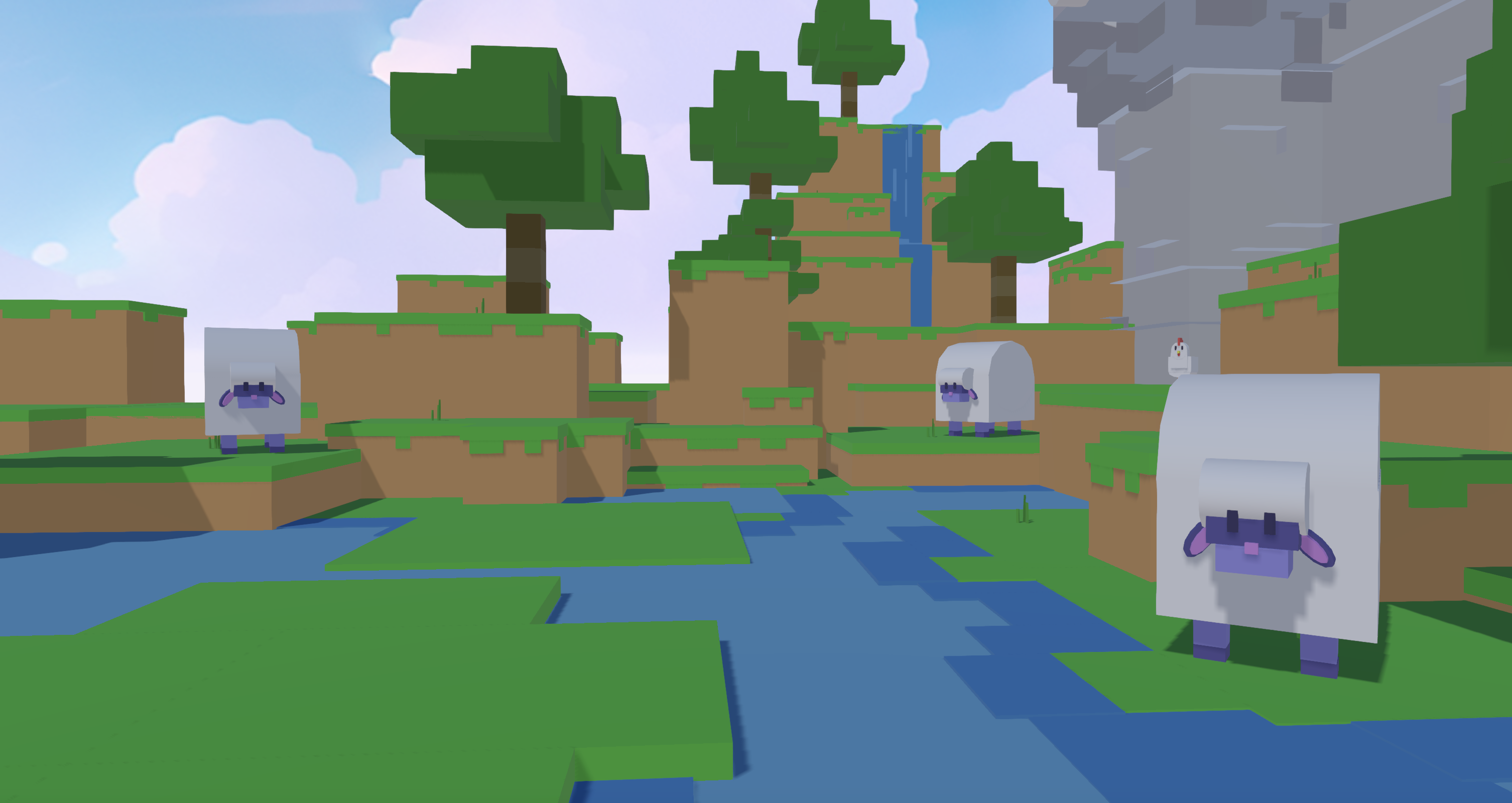
- Input your idea: Type a text prompt, upload a reference image, or sketch in the browser. Nilo’s AI turns that into a 3D mesh in seconds.
- Adjust LOD in real time: Drag the level of detail slider until your polygon count fits within Roblox’s limits. You see the mesh update live, so you do not have to guess.
- Rig with one click (if needed): For characters or animated props, you set up the bone structure with a single click.
- Export as FBX: Download a clean FBX file that works well in Roblox Studio. You skip Blender and avoid manual retopology.
As one builder said in Nilo’s February 2026 survey, “There are no limits on what you can create — just type, draw or add in an image and you can generate, rig, customise and place a fully 3D model within minutes.”
Step-by-Step: Importing FBX Files Into Roblox Studio
Once you have your FBX file from Nilo or any other generator, you can bring it into Roblox Studio with a short sequence of steps.
- Open Roblox Studio and load your experience.
- In the top menu, go to Home and click Import 3D, or right-click in the Explorer panel to insert a MeshPart.
- Select your FBX file from your computer.
- Check the triangle count in the 3D Importer preview window. If it goes over the cap, the importer will reject it.
- Confirm the scale against the baseplate. Roblox treats 1 unit as 1 stud, about 0.28 meters, so a wrong export scale makes props appear huge or tiny.
- Click Import so the MeshPart appears in your workspace.
- Position, texture, and configure your prop as your experience needs.
Common Roblox Import Errors and Quick Fixes
- “Triangle count exceeds limit”: Your mesh sits above the triangle cap. Use Nilo’s LOD slider before export, or use Meshy’s Remesh tool to lower the count.
- Model imports at the wrong size: Roblox treats one unit as one stud, so incorrect unit scale breaks size. In Blender, set unit scale to 1.0 and apply all transforms before export.
- Textures missing after import: Export as GLB to bundle textures, or upload your texture as a separate PNG up to 1024×1024 pixels and apply it manually in Studio.
- Mesh appears inside-out or dark: Flipped normals cause this. In Blender, recalculate normals outward before export. Nilo fixes normals for you automatically.
- Rigged model deforms incorrectly: Review your rig settings before export and match Roblox’s animation system requirements.
- Model becomes non-solid on import: Very dense meshes can cause issues when importing as solid models. Reduce polycount before you bring the asset into Studio.
Skip common import errors and start generating Roblox-ready props in your browser today.
Free and Paid Plans for Roblox Prop Generators
Nilo’s free tier gives you 1,000 Nilo Bits per month, which covers a solid batch of generated, cleaned, and exported props without spending a bunch of money. Core building tools do not use Bits. If you want higher generation volume or access to newer model types, paid tiers add more Bits and extra model options.
Meshy offers a free tier with limited generations and keeps some export formats and the Roblox Bridge on paid plans. Sloyd has a free tier for basic generation but restricts commercial use and advanced export if you stay on free. Lemonade.gg’s pricing connects to how you use its Roblox Studio integration.
When you choose a plan, weigh how many props your experience needs. Free tiers usually work for testing quality, but a full Roblox world with dozens of props can hit export limits fast, so check those caps early.
Frequently Asked Questions
Do I need to know Blender to use a Roblox prop generator online?
You do not need Blender when you use tools like Nilo. You generate a prop from a text prompt, sketch, or image, adjust polygon count with a slider, and export a clean FBX file that works in Roblox Studio. Blender still helps for advanced work, but your generator can handle retopology and cleanup for everyday props.
What polygon count should my Roblox prop use?
Roblox caps individual meshes at 20,000 triangles. For humanoid characters, staying under 10,000 triangles excluding accessories keeps things smoother. For background props that players rarely inspect up close, a range of 500 to 2,000 triangles helps your experience run well on mobile and lower-end devices.
What file format should I export for Roblox?
FBX works best for rigged or animated models because it carries the most data. OBJ fits simple static props. GLB helps when you want to bundle textures in a single file. Nilo exports FBX, OBJ, STL, and glTF, so you can pick the format that matches how you plan to use the prop.
Can I use AI-generated props on the Roblox Marketplace?
Yes. Roblox’s Terms of Service allow AI-generated 3D content, and any models you create in Nilo belong to you. You can use, publish, and monetize them on the Roblox Marketplace or elsewhere. Always double-check the terms of the AI tool you used so you understand your commercial rights.
How long does it take to generate and import a prop with Nilo?
You can usually go from prompt to imported MeshPart in Roblox Studio in a few minutes. That includes generation, LOD adjustment, export, and import. In Nilo’s February 2026 survey, builders reported generating assets in about 15 to 20 seconds, with the export and Studio import adding only a short extra step. That timeline compares to 30 minutes or more of manual retopology in Blender for a single asset from a standard AI generator.
Start Building Cleaner Roblox Props Today
Most Roblox prop generators hand you a raw mesh and leave the hard work to you. You then fix topology, chase triangle limits, and re-export from Blender instead of building your world. Nilo handles retopology and export cleanup automatically, so you stay focused on ideas, not on mesh surgery.
Nilo is in open beta and free to start. You get 1,000 Nilo Bits every month, full browser access with no downloads, and a growing Discord community of more than 9,000 builders who are creating worlds like yours.
Create your first optimized Roblox prop in minutes, no Blender required.