Written by: Nuno Leiria, Founder & CEO @ Nilo
Key Takeaways
- Many AI tools still require Roblox Studio installation and manual cleanup, which creates friction and breaks your creative flow.
- Lemonade AI works as a plugin inside Roblox Studio, so it speeds up scripting but still needs desktop software and manual fixes.
- Common challenges include high polygon counts, export errors, and slow iteration cycles that often push you into extra tools like Blender.
- Nilo offers a fully browser-based workflow that handles generation, cleanup, rigging, testing, and export without installation or external software.
- Join Nilo’s open beta to build Roblox-ready assets in minutes with no coding or setup.
What Lemonade AI Can Do for You Right Now
Lemonade AI (lemonade.gg) is an AI assistant that helps you generate Roblox assets and Lua scripts through prompts. You describe what you want and get usable output faster than writing code from scratch.
The tool runs as a plugin inside Roblox Studio instead of replacing it. Roblox Studio is a professional desktop app that needs installation, a capable computer, and time to learn the interface. Lemonade AI speeds up some tasks in that space, but Roblox Studio still sits at the center of your workflow.
This setup works well if you already know Roblox Studio and want faster scripting help. If you are an aspiring builder who has not learned Studio yet, you still face the same installation barrier, the same complex interface, and the same need to understand Roblox systems before the AI output feels useful.
How Lemonade AI Fits Into a Roblox Studio Workflow
To understand where friction appears, walk through what using Lemonade AI looks like in practice.
Using Lemonade AI involves several sequential steps that each carry their own friction points:
- Download and install Roblox Studio on your desktop.
- Install the Lemonade AI plugin from the Roblox plugin marketplace.
- Connect the plugin to your Lemonade AI account.
- Write prompts inside the plugin interface to generate Lua scripts or asset configurations.
- Review the generated output inside Studio.
- Manually fix errors, adjust polygon counts (the number of triangles that make up a 3D model’s surface), or clean up geometry that does not meet Roblox performance limits.
- Test inside Studio’s playtest mode.
- Publish from Studio.
Each handoff between steps is a moment where your momentum can break. The plugin generates output, but Studio is where you discover whether that output actually works. If the mesh has too many polygons or the script throws errors, you drop back into manual troubleshooting inside a professional tool that does not feel friendly when you are just starting out.
Real Builder Frustrations With Lemonade AI and Similar Tools
Nilo’s February 2026 survey with builders surfaced consistent frustrations with plugin-based and multi-tool AI workflows. These patterns show up again and again when you try to build with AI on top of Roblox Studio.
The most common issues builders reported include:
- Output quality requiring manual cleanup: AI-generated meshes often have geometric defects, asymmetry, or what builders call a “melted” look. Fixing these usually means opening Blender, which is powerful but takes months to learn, or accepting lower-quality assets.
- Polygon count problems: Roblox caps assets at 10,000–20,000 triangles. Many AI tools generate models above this limit, so you need manual retopology (rebuilding the mesh surface to reduce polygons while keeping the shape) before the asset works well.
- Export errors and compatibility issues: Rig components, which are the internal skeletons that let a character move, sometimes do not apply correctly in Roblox Studio. Movement glitches, pivot errors on accessories, and missing collision data on export show up often.
- Iteration bottlenecks: When a prompt gives poor results, you rarely have a fast way to refine. You regenerate, wait, review, and repeat, which can burn 30 minutes or more on a single asset.
One builder described the frustration directly in Nilo’s February 2026 survey: “Picture yourself, frustrated because you spent the last 5 hours 3D modeling a shipping container.” This guide aims to help you avoid that kind of grind.
Nilo’s Browser-Based Creation Flow From Idea to Export
Nilo is a standalone, browser-based platform, not a plugin or extension of another tool. You open it in your browser and the full creation environment is ready. No installation, no Roblox Studio dependency, and no bouncing between apps.

The workflow follows five stages that stay inside one environment:
- Ideate: Describe your asset with a text prompt, upload a reference image, or sketch it in 2D. Nilo’s multimodal input lets you combine all three, so you can type what you want, draw the rough shape, and drop in an image for style.
- Generate: Nilo generates 3D characters, weapons, and props in seconds using a model-agnostic AI layer that connects to providers including Meshy, Tripo, and Nano Banana. You see the best available output in one place without tracking which model produced it.
- Refine: Use the level of detail (LOD) slider, which adjusts polygon count in real time, to keep your asset inside Roblox’s 10K–20K triangle limits automatically. You do not need Blender for this step. For bipedal, humanoid characters in a T-pose, you can rig with one click and create animations from a simple text description.
- Test: Preview your asset inside your Nilo world with real-time physics. Share a link and invite friends to play with you before you export anything.
- Export: Nilo keeps polycount within target so models work directly in Roblox Studio and other platforms. Export as FBX, OBJ, STL, or glTF and import into Roblox Studio, Unity, Unreal Engine, or Blender.
Builders in Nilo’s February 2026 survey described the difference clearly: “I do not have to spend hours on 3D modeling the simplest things. Now I can use Nilo and do it in 15 seconds.” Another builder said, “You can work 20 times faster than you usually work on models.”

Feature Comparison: Nilo vs Lemonade AI in Practice
When you compare Nilo and Lemonade AI, look at how each tool supports your full creation pipeline.
Generation: Nilo supports text, image, and sketch inputs with multiple AI model providers inside one interface. Lemonade AI focuses on prompt-to-Lua script generation and asset configuration inside Studio, with more limited multimodal input.
Optimization: Nilo’s real-time LOD system handles retopology automatically, so polygon counts stay within Roblox limits without extra tools. With Lemonade AI’s plugin workflow, polygon cleanup usually means manual work in Blender or Roblox Studio.
Rigging and animation: Nilo lets you rig bipedal humanoid characters with one click and generate animations from text. Lemonade AI relies on whatever rigging and animation tools you already use in Roblox Studio.
Export formats: Nilo exports FBX, OBJ, STL, and glTF, which work with Roblox, Unity, Unreal Engine, Blender, and VRChat. Lemonade AI’s output is mainly designed for Roblox Studio.
Collaboration: Nilo supports real-time multiplayer creation, so you can share a URL and build together on desktop or mobile. Lemonade AI’s plugin runs inside Studio’s single-user environment.
Installation requirements: Nilo runs entirely in the browser with no downloads. Lemonade requires downloading and running platform-specific installers such as the MSI on Windows or .pkg on macOS to set up the AI runtime, GUI, CLI, and API endpoints.
Cost and Accessibility for Different Setups
Nilo’s free tier includes 1,000 Nilo Bits per month, which are credits that power AI generation, export, and creation features. Many core building tools use no Bits at all. Paid tiers give you more Bits and access to higher-quality generation models. You only need a device with a modern browser, including a phone or tablet.
Lemonade AI’s pricing works best when you check their website, since tiers and limits can change. The main accessibility difference sits in the structure. Lemonade AI needs a desktop that can run Roblox Studio, the Studio installation itself, and plugin setup before you start building with AI. Nilo needs a browser and a link.
When Nilo or Lemonade AI Makes More Sense for You
Lemonade AI fits well if you already feel comfortable in Roblox Studio, mainly want scripting help, and prefer to keep working inside that environment. In that case, Lemonade AI acts as an accelerator for a professional-style workflow.
Nilo stands out when you want to stay in creative flow from concept to export without switching tools. It also helps when you want real-time collaboration, when you build assets for Roblox but also care about Unity or Unreal Engine, or when you prefer not to install anything. Nilo becomes especially useful if polygon optimization and rigging slow you down today.
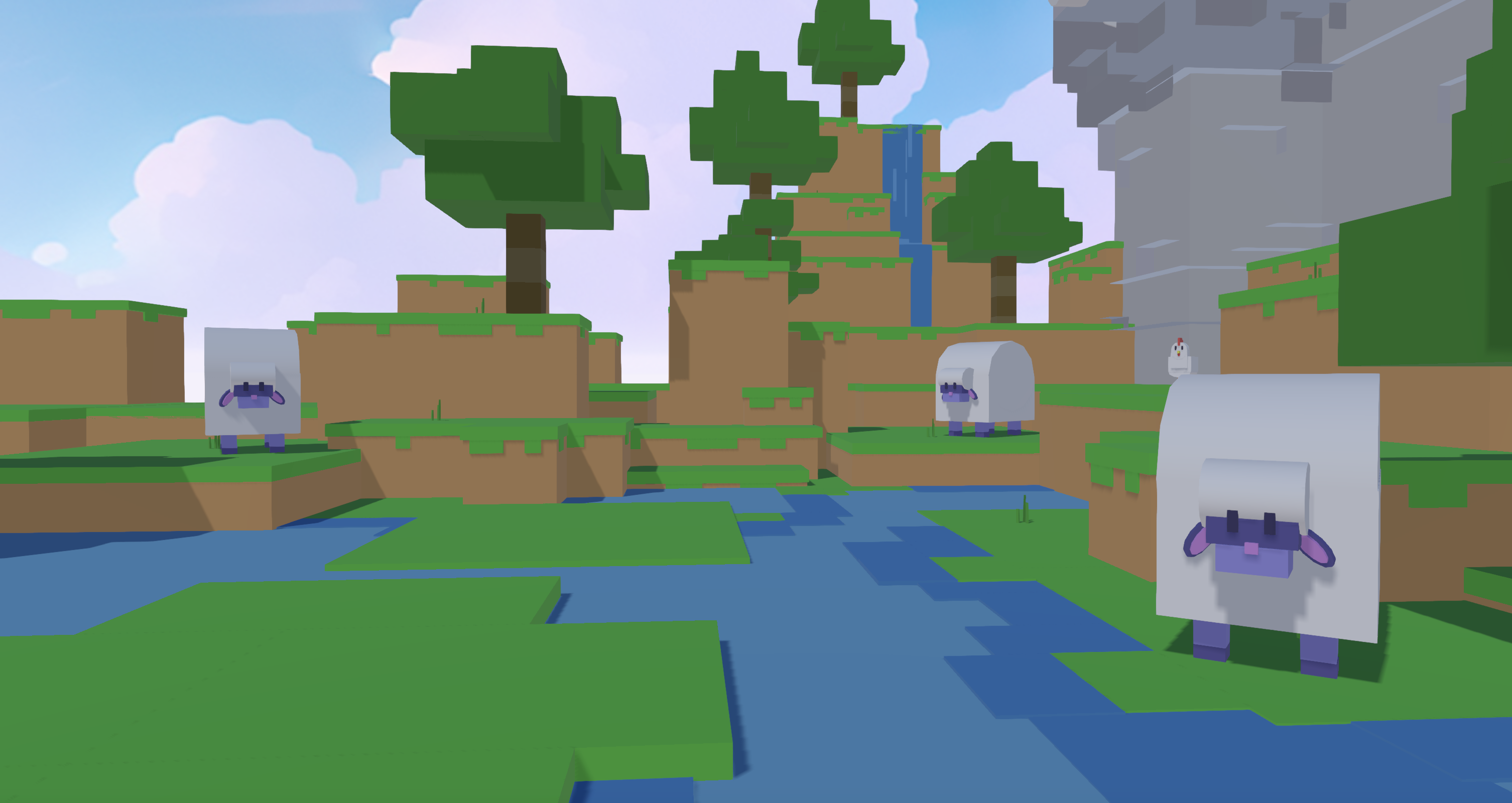
If you are just starting out and have not committed to Roblox Studio yet, Nilo removes the installation barrier and lets you explore what is possible before you add more complexity.
Fixing Common Problems in Your AI Building Flow
Whether you use Lemonade AI, Nilo, or both, you will run into a few recurring problems. Here is how to spot them and what to try next.
- Poor output quality: If your generated model looks distorted or asymmetrical, the prompt likely lacked detail or the AI model does not fit that asset type. Refine your prompt with more specific descriptors, try adding an image or sketch, or switch AI model providers if your platform lets you.
- Polygon count too high: If Roblox Studio shows a performance warning on import, the AI probably created a high-poly mesh without optimization. In Nilo, you can use the LOD slider to reduce triangles before export. In a plugin-based workflow, you usually need Blender for this step.
- Export errors: If the imported file looks different from what you created or collision data is missing, you may have a format mismatch or rig data loss during export. Check that the export format matches what your target platform expects, such as FBX for most Roblox workflows, and confirm that rig components are applied before export.
- Iteration bottlenecks: If you regenerate the same asset many times without better results, your prompt may be too vague or your tool may not show real-time previews. Look for platforms that let you refine live instead of forcing full regeneration cycles, since live preview cuts this delay.
Scaling Your Workflow Once the Basics Work
After you have a basic asset pipeline running, you can start thinking about how to scale it across more projects and bigger worlds.
- Reuse assets across projects: Once you lock in a visual style, Nilo lets you create asset packs from a single image and generate multiple related props at once. This helps you keep a consistent look across different worlds without rebuilding similar items every time.
- Collaborate across roles: Real-time multiplayer creation lets a builder and a scripter work in the same environment at the same time. You share a link, build together, and avoid constant file passing and version confusion.
- Adapt outputs for other platforms: Because Nilo exports to standard formats, assets you create for Roblox can move into Unity, Unreal Engine, or VRChat. You reuse your work instead of starting over for each platform.
- Improve consistency: One builder in Nilo’s February 2026 survey said, “There are no limits on what you can create — just type, draw or add in an image and you can generate, rig, customise and place a fully 3D model within minutes.” When you keep prompts detailed and use strong reference images, you get more predictable results over time.
Frequently Asked Questions
Do I need to know how to code to use Nilo?
No. Nilo’s built-in code editor accepts natural language prompts, so you describe what you want a character or object to do in plain text. Nilo then generates working code with real-time feedback in your 3D world. You can also tweak the actual code variables, which helps you learn programming concepts without writing everything from scratch.
What export formats does Nilo support, and where can I use them?
Nilo exports FBX, OBJ, STL, and glTF files. These formats work with Roblox Studio, Unity, Unreal Engine, Blender, and VRChat. Nilo does not lock you in, so you can treat it as an asset creation pipeline and continue building in any other tool.

Does Nilo meet Roblox’s polygon limits automatically?
Yes. Nilo’s real-time LOD system adjusts polygon counts on the fly. Roblox caps assets at 10,000–20,000 triangles, and Nilo’s LOD slider lets you hit that target before export, so you skip manual retopology in Blender.
Can I rig and animate any 3D model in Nilo?
Nilo’s one-click rigging focuses on bipedal, humanoid characters in a T-pose, which is the arms-out position that gives the best animation quality. Clothing rigs as part of the full character model. For 3D layered Roblox clothing, you set up the layered clothing cage in Roblox Studio after export. Animation comes from text descriptions, so you describe the movement and Nilo creates it.
Is Nilo free to use?
Yes. Nilo’s free tier includes 1,000 Nilo Bits per month for AI generation and export. Many core building features use no Bits. Paid tiers add more Bits and access to higher-quality generation models. You can also earn extra Bits through Nilo Rewards by referring friends and building with the community.
Ready to Build Without the Friction?
Plugin-based AI tools like Lemonade AI often struggle because of their dependencies. When your workflow needs Roblox Studio installation, plugin setup, manual polygon cleanup, and export troubleshooting, you are not in a true no-code flow. You are working in a lighter professional pipeline, which still carries a lot of overhead.
Nilo’s browser-based pipeline of ideate, generate, refine, test, and export keeps you in creative flow from the first prompt to the final Roblox-ready file. In Nilo’s February 2026 survey, 93% of builders said they would recommend Nilo to a friend, and 82% rated their experience as “Awesome” or “Good.”
If you want to spend your time designing objects instead of fighting polycounts and plugin errors, the open beta is live.