Written by: Nuno Leiria, Founder & CEO @ Nilo | Last updated: June 30, 2026
Key Takeaways
-
Traditional Roblox obby creation relies on Lua scripting for checkpoints and moving platforms, which blocks many non-coders.
-
Nilo removes scripting by letting you generate, adjust, and animate 3D assets with plain language prompts in your browser.
-
The platform handles retopology, rigging, and Roblox polygon limits for you, so you can focus on level design and pacing.
-
Real-time multiplayer playtesting and instant asset generation help you iterate faster without juggling a bunch of different tools.
-
You can try the full no-scripting workflow yourself by joining Nilo’s open beta and building and playing for free.
Who This No-Scripting Obby Guide Is For
This guide speaks to you if you play obbies all the time but have not learned Lua scripting yet. You do not need Blender experience or any coding background.
Here are a few terms that will show up as you build:
-
Scripting: Writing code that makes game objects move, detect players, and trigger events. Roblox Studio uses Lua for this.
-
Browser-based workflow: Creating everything inside a web browser, with no downloads or installs on your device.
-
Natural language prompts: Typing what you want in plain text, or adding a sketch or image, and letting AI generate it for you.
-
Real-time physics: Objects that move, collide, and react as soon as you place them, without extra setup steps.
-
Retopology: Cleaning up the polygon structure of a 3D mesh so it runs smoothly in a game engine. Nilo does this in the background.
The main Roblox obby no-code problem in 2026 is tool fragmentation. Most tutorials send you through Roblox Studio for building, Blender for custom models, a separate code editor for scripting, and YouTube for every question in between. Each switch breaks your flow. Roblox also enforces a hard limit of 21,000 triangles per MeshPart, and imports fail when you go over that cap, which adds more friction.
Nilo’s single-tool workflow removes those extra steps. Everything from generating assets to playtesting to exporting happens in one browser tab, and you stay focused on your obby.
Jump into Nilo’s open beta and start your first no-code obby today
Step-by-Step: Make a Roblox Obby Without Scripting
Nilo’s workflow breaks into six clear steps. Each step connects to a specific feature inside the platform.
Step 1: Craft Your Obby Platforms and Props
You begin by generating the props and platforms your obby needs. Type a description like “mossy stone platform,” “spinning blade obstacle,” or “lava rock.” You can also upload a sketch or reference image, or combine text and images in one prompt.
Nilo’s model-agnostic AI layer pulls from several generation providers, including Meshy and Tripo, and returns a 3D model in seconds. You then drag that model straight into your world.
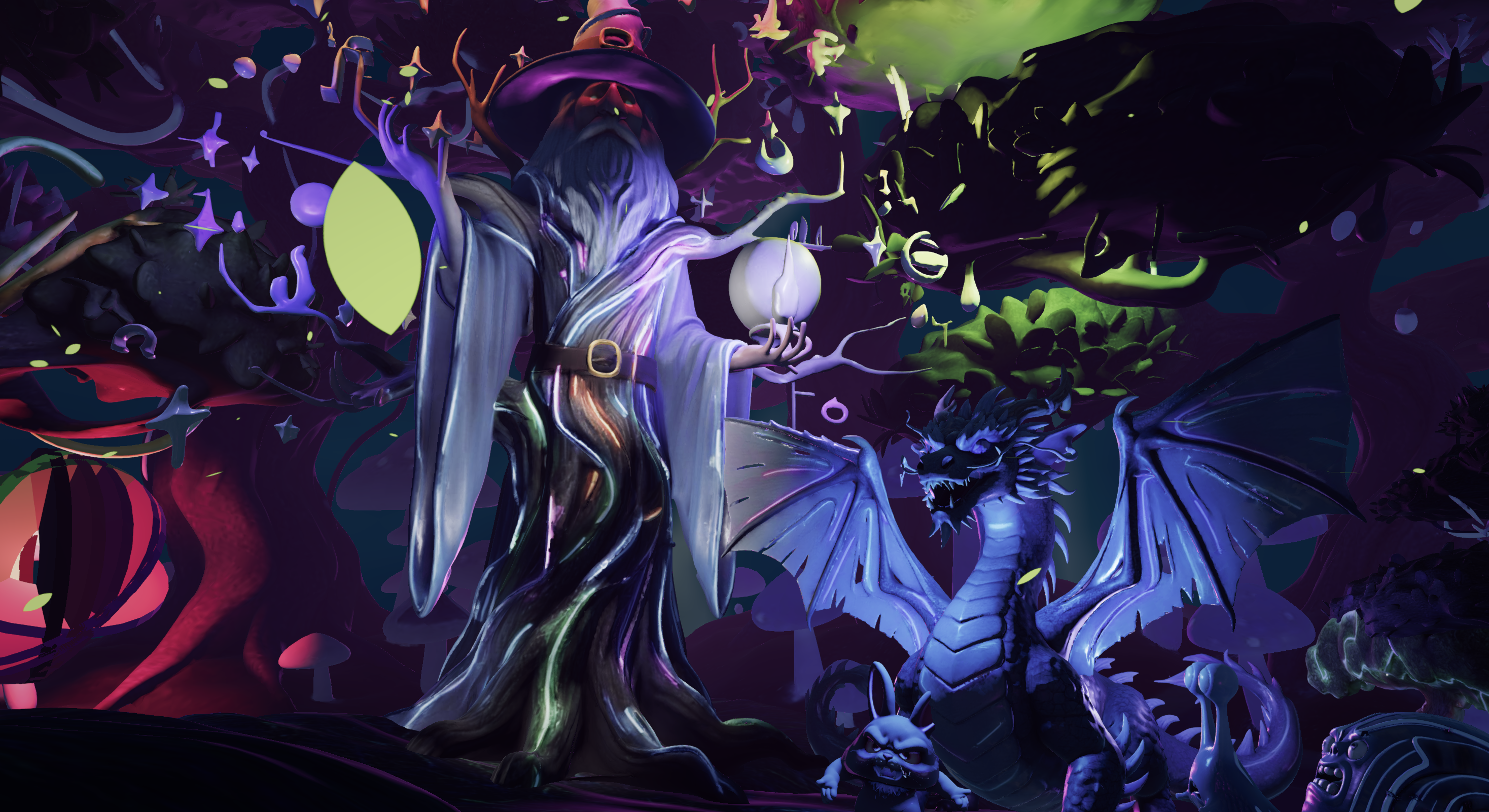
The quality of that model depends on how specific your prompt is. Vague prompts such as “platform” give the AI too much room to guess. Detailed prompts like “floating hexagonal platform, low poly, fantasy style” produce cleaner and more accurate results.
Step 2: Adjust Detail, Rig, and Animate
After your model appears in the world, you use the level of detail (LOD) slider to reduce its polygon count automatically. This acts as Nilo’s real-time retopology. The mesh simplifies on the fly until it fits Roblox’s performance rules, and you never touch a single vertex.
For moving obstacles, you rig the model with one click. Then you generate an animation with a short text prompt such as “rotate continuously” or “bounce up and down.” You skip timeline editors and keyframes and still get smooth motion.
Step 3: Build Themed Asset Packs Fast
You can upload a single reference image, like a screenshot of your obby’s theme, a mood board, or a concept sketch. Nilo then generates a matched set of props from that image.
You choose which elements to create, such as platforms, barriers, or decorative pieces. This gives your whole obby a consistent visual style without regenerating each asset one by one. You end up with a Roblox obby no code 2026 build that feels intentional instead of random.
Step 4: Design Roblox-Ready Avatars
If your obby uses a custom avatar or skin, you create it at this stage. Type a description or upload a reference, and Nilo produces a Roblox-compatible skin with AI. You can then add animations with a short text prompt.

These avatar files export directly as Roblox-ready assets, so you avoid extra conversion steps later.
Start creating your custom avatar in Nilo’s open beta
Step 5: Playtest Your Obby With Friends
You share a link to your world. Anyone with that URL can jump into your Nilo session on desktop or mobile, and they do not need an account to play.
You walk through your obby together in real time, test platform spacing, and check whether moving obstacles feel fair. Friends can spot problems you miss. This is real-time multiplayer creation, so your friends can build with you or just play and give feedback.

Use this as an iteration checkpoint. When a platform gap feels too wide or a spinning blade moves too fast, you tweak the animation prompt and regenerate in seconds.
Step 6: Export to Roblox Studio and Upload
When your obby feels ready, you click Export. Nilo outputs standard 3D formats such as FBX, OBJ, glTF, and STL, already tuned to stay under Roblox’s triangle cap.
You import the file into Roblox Studio, and your assets appear ready to use. You skip manual cleanup, Blender detours, and polycount math.
Export your first Nilo-built obby into Roblox Studio
Obby Workflow Patterns That Keep You Moving
A simple workflow pattern that fits almost any obby project is ideate → generate → refine → test → export. This pattern lines up with Nilo’s six steps and keeps you moving forward instead of fixing technical issues over and over.
Picture a beginner obby with eight stages: a flat starter platform, a gap jump, a moving platform section, a spinning blade corridor, a narrow beam, a rising lava floor sequence, a checkpoint room, and a finish line. In Nilo, you generate platform assets in Step 1, animate moving and spinning pieces in Step 2, build the full asset pack in Step 3, playtest timing in Step 5, and export the full set in Step 6. The avatar from Step 4 stays optional but adds extra polish.
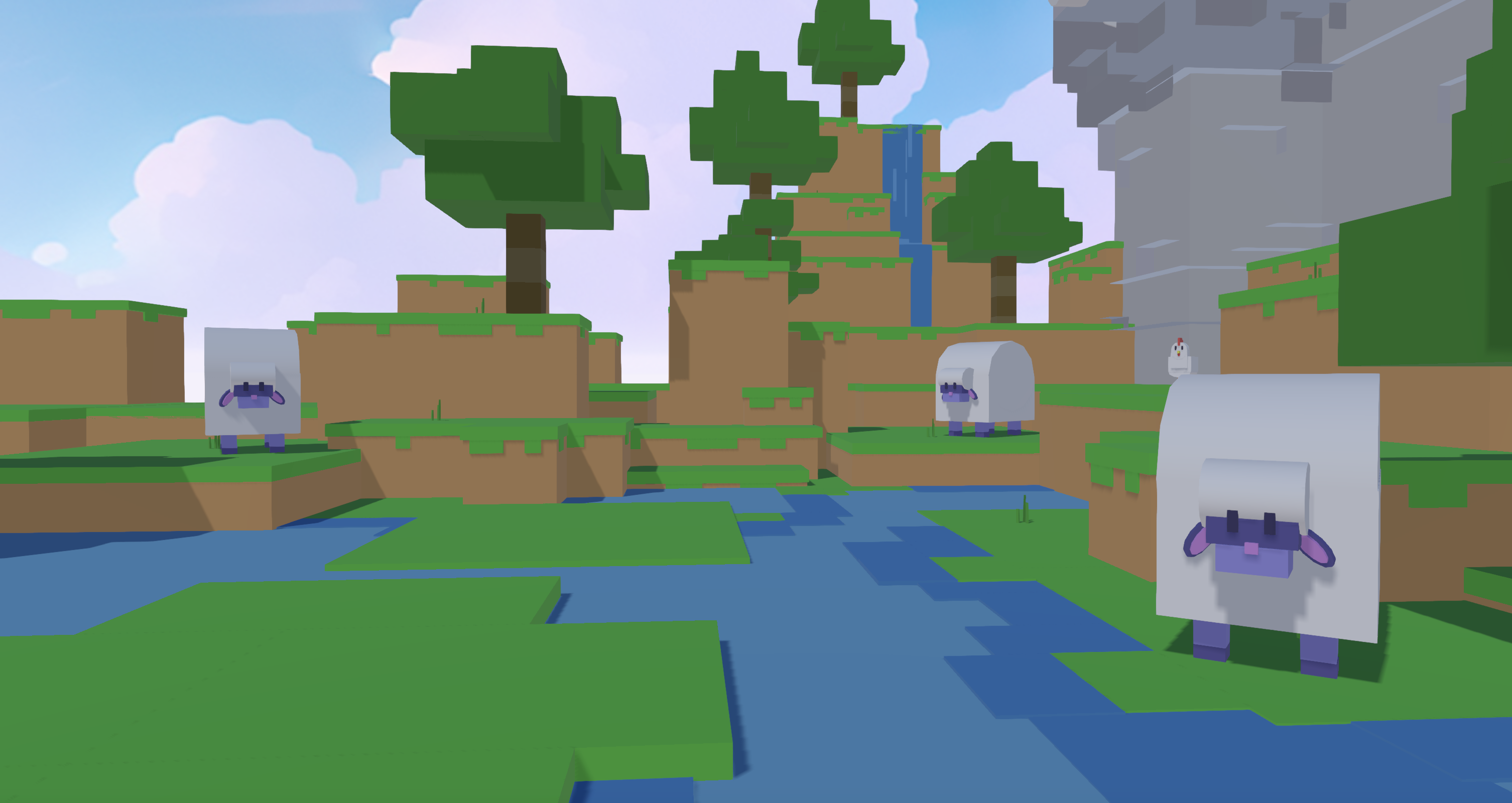
Your ideal workflow depends on two main factors. First, you need to stay under Roblox’s triangle limit, so you use the LOD slider aggressively on complex props. Second, you decide how you want to collaborate. When friends build with you, you share the link early so feedback arrives while you are still constructing, not after everything feels finished.
Builders in Nilo’s February 2026 Survey described the speed jump clearly. One said, “I do not have to spend hours on 3D modeling the simplest things. Now I can use Nilo and do it in 15 seconds.” Another shared, “You can work 20 times faster than you usually work on models.”
Common Obby-Building Problems and Fixes
Unclear prompts producing unexpected results. If the generated model looks nothing like what you imagined, the prompt was probably too vague, such as “make a platform.” Add style, shape, and material details like “square stone platform, mossy edges, low poly, 10 studs wide.” Nilo’s creative control tools let you refine with follow-up prompts or swap AI providers without leaving the platform.
Mesh quality inconsistencies. If your generated model looks melted or oddly asymmetrical, the AI provider you used likely struggles with that shape. Because Nilo’s model-agnostic layer connects you to several generators, including Meshy and Tripo, you can switch providers with one click and regenerate until the result looks clean.
Export mismatches in Roblox Studio. If an imported model appears at the wrong scale or loses texture colors, the pivot point or texture data probably did not transfer cleanly. Check that the LOD slider brought the model under Roblox’s triangle cap before export, then re-export using FBX format, which usually works best with Roblox Studio.
Animation not behaving as expected. If a rigged platform rotates on the wrong axis or moves too fast, refine the animation prompt with more detail, such as “rotate 360 degrees on the Y axis, 2-second loop.” Regenerate and watch the change in Nilo’s real-time world view.
How to Tell Your No-Scripting Workflow Is Working
Several clear signs show that your no-scripting obby workflow is on track:
-
Reduced creation time: A single platform asset should take minutes, not hours. When generation and cleanup feel slow, you usually need a sharper prompt.
-
Clean exports under Roblox’s triangle limit: You check polygon count in Nilo’s inspector before export. The LOD slider should bring any model under Roblox’s triangle cap.
-
Stable playtests: Friends can finish your obby without falling through geometry or hitting invisible walls. Physics collisions in Nilo work by default, so you do not wire them up by hand.
-
Fewer revision cycles: When you regenerate the same asset more than three times, you adjust your prompt strategy instead of brute-forcing more generations.
In the short term, you should see a full set of obby props generated and cleaned up in a single session. Over time, you build a personal library of asset packs. Once you create a fantasy obby pack, you can reuse and remix it across future worlds instead of starting over.
Scaling Your Obby and Reusing Your Work
After you ship a basic obby, you can grow it in several ways. Scaling to larger maps often means generating extra asset packs with matching themes. You can reuse the same reference image across multiple Create Asset Packs sessions to keep a consistent look.
Reusing asset packs across worlds saves a lot of time. You clone an existing world in Nilo and swap the layout while keeping your favorite props and obstacles.
Real-time collaboration becomes more powerful at this stage. You might invite a friend to build later stages while you polish the early ones. Nilo’s multiplayer creation keeps both of you in the same world at the same time instead of trading files.
When you feel ready to move beyond Roblox, Nilo exports to Unity, Unreal Engine, VRChat, and any platform that accepts FBX or glTF. The same obby assets you built for Roblox can shift into other environments without a full rebuild. One survey respondent summed up this flexibility: “I like how it feels like a good game engine rather than a vibe coding tool, with easy building and a good focus on being able to export and import content.”
A controlled approach to changes works best here. You change one variable at a time, such as animation speed, platform density, or obstacle timing, and then playtest after each tweak instead of rebuilding whole sections.
Explore bigger maps and exports in Nilo’s open beta
FAQ
How long does it take to build a complete obby using Nilo?
You can usually assemble a basic 8-stage obby with generated props, cleaned meshes, and animated obstacles in a single session. For a first build, this often means a few hours, and later projects go faster once you know how to write strong prompts. Asset generation itself takes seconds to minutes per model. Most of your time goes into playtesting and tuning platform spacing, which happens in any obby, no matter which tool you use.
Do I need any prior skills to use Nilo?
You do not need coding, Blender experience, or a 3D modeling background. If you can describe what you want in text or draw a rough sketch, Nilo can turn that into assets. The platform also teaches real concepts like rigging, polygon counts, and mesh topology through the interface, so you learn while you build instead of studying first.
What export formats does Nilo support, and are they compatible with Roblox Studio?
Nilo exports FBX, OBJ, STL, and glTF files. FBX usually gives the smoothest import into Roblox Studio and is the recommended choice for obby assets. Nilo’s LOD system trims polygon counts to fit Roblox’s performance caps before export, so the file arrives in Roblox Studio ready to place.
How is Nilo different from just using Roblox Studio’s built-in tools?
Roblox Studio works as a powerful professional tool, but anything interactive, such as checkpoints, moving platforms, and win conditions, needs Lua scripting. If you do not code, you hit that wall right away. Nilo removes scripting from the obby creation process. Animations come from text prompts, physics work by default, and assets export to Roblox Studio already tuned for performance. You still publish your final game through Roblox, while Nilo handles the asset creation pipeline before that step.
Can I playtest my obby with friends before exporting to Roblox?
Yes. Nilo’s Playtest with Friends feature lets anyone join your world through a shared link, with no account or download. You walk through your obby together, test obstacle timing, and collect live feedback from friends on desktop or mobile. This all happens inside Nilo before you export to Roblox Studio, so you catch layout issues early instead of after a full import.