Written by: Nuno Leiria, Founder & CEO @ Nilo
Key Takeaways for Your First Roblox Model
-
Traditional Roblox modeling means learning Blender and doing manual cleanup, which creates a steep barrier when you are just starting.
-
Nilo offers a browser-based workflow that generates, cleans up, rigs, and exports Roblox-ready models without any installs.
-
You can create models from text prompts, sketches, or images and automatically handle retopology, LOD, and rigging in minutes.
-
The full process, from generation to Roblox Studio import, follows a simple ideate → generate → refine → test → export pattern that keeps you in flow.
-
Try Nilo today to build and export your first Roblox model instantly and start creating in your browser.
Why Your First Roblox Model Feels So Hard
The traditional path to a custom Roblox model looks like this: learn Blender for months, generate a mesh in minutes, manually retopology it for hours, fix the polycount, rig it, export, import, discover an error, then repeat the loop. Even experienced digital artists say AI-generated meshes from tools like Meshy usually need extra cleanup before they are ready for a real game. You face a double barrier as a beginner: you must learn the tool and then fix what the tool gives you.
Nilo removes that loop entirely. Where the traditional workflow takes days of learning plus hours of cleanup for each model, Nilo compresses the whole process into minutes of browser-based work with no prior 3D experience.
What You Need to Get Started With Nilo
You only need two things to start building:
-
A modern browser such as Chrome, Edge, Firefox, or Safari
-
An internet connection
That is all. You do not need a GPU, a desktop app, or a plugin. Nilo runs on WebAssembly and WebGPU, the same browser technology that powers high-performance web apps, so it works on almost any device, including your phone.
Step 1: Open Nilo in Your Browser and Enter Your World
-
Open Nilo’s browser editor in any modern browser.
-
Create a free account. You get 1,000 Nilo Bits, the platform’s generation credits, every month at no cost.
-
Click into a new world. The editor opens directly in your browser, with no loading screen and no install prompt.
-
Spend 60 seconds looking at the radial menu, the circular shortcut menu that appears when you right-click in the world. You will use this to create objects fast.
-
You are in. The 3D environment is live and interactive by default, with physics and collisions already running.
Step 2: Generate Your First Model From Text, Sketch, or Image
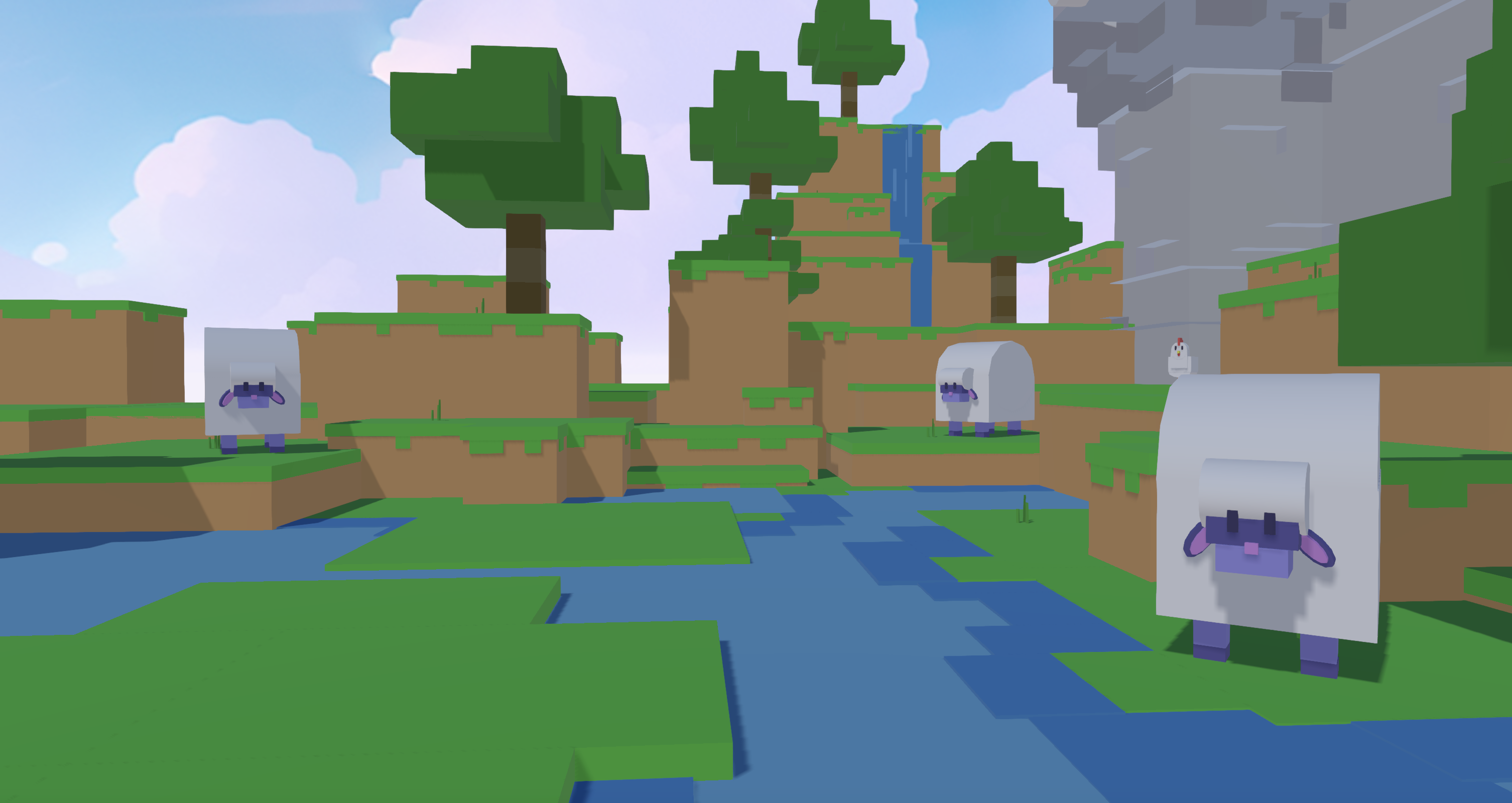
A mesh is the 3D surface that makes up a model. Think of it as the shell of your sword, character, or prop. Nilo generates meshes from three different inputs so you can start in the way that feels natural.
-
Open the Craft Your Model panel from the radial menu.
-
Choose your input. You can type a text prompt such as “glowing katana with a wrapped handle,” draw a quick sketch in 2D, or upload a reference image.
-
Select an AI model provider. Nilo brings multiple providers, including Meshy, Tripo, and others, into one interface so you can switch between them to match the style and quality you want without leaving the platform.
-
Click Generate. Your mesh appears in seconds.
-
If the result is not what you pictured, adjust your prompt and regenerate. As one builder put it in Nilo’s February 2026 survey: “There are no limits on what you can create — just type, draw or add in an image and you can generate, rig, customise and place a fully 3D model within minutes.” Once you have that first generated mesh, the next step is making sure it fits Roblox’s performance rules.
Step 3: Clean Up and Prepare Your Model for Roblox
Retopology means restructuring a mesh’s geometry so it is clean, efficient, and ready for a game engine. Polycount is the number of triangles, or polygons, in that mesh, and Roblox enforces triangle limits for imports. LOD, or level of detail, is a system that simplifies a mesh at a distance so your game keeps running smoothly.
-
After generation, open the Optimize, Rig & Animate panel.
-
Drag the LOD slider left to reduce polygon count. Watch the triangle number update in real time and keep it under 20,000 for a safe Roblox import.
-
Let Nilo handle retopology automatically. You do not open Blender or manually redraw edges.
-
Check the mesh preview. Clean topology means no floating geometry, no holes, and no “melted” surfaces.
-
When the polycount is in range and the mesh looks solid, move on to rigging.
Step 4: Rig and Animate Your Model With One Click
Rigging means adding a skeleton, a set of bones, to a mesh so it can move and animate. In Blender, you would place bones by hand and paint vertex weights to decide which parts of the mesh each bone controls. In Nilo, you handle this in a single click and a short prompt.
-
In the Optimize, Rig & Animate panel, click Rig. Nilo places the skeleton automatically.
-
To add an animation, type a short description such as “walk cycle,” “sword swing,” or “idle breathing.” The AI generates the motion for you.
-
Preview the animation directly in your browser world. If it looks off, type a revised description and regenerate.
-
Use Mixamo-compatible animation retargeting support in Nilo so rigs can work across platforms.
-
When the animation plays correctly, move on to export.
Start rigging and animating your models in Nilo’s open beta, no download required.
Step 5: Export and Upload Your Model to Roblox Studio
-
Click Export in the panel. Choose your format. FBX works well for rigged and animated models. GLB bundles textures automatically. OBJ suits static props.
-
Download the file. Roblox accepts FBX, glTF, and OBJ for 3D imports, with textures up to 4096×4096 in PNG, JPG, TGA, or BMP formats. Nilo’s export matches these specs.
-
Open Roblox Studio. Go to the Model tab and click Import 3D.
-
Select your downloaded file. Roblox Studio’s 3D Importer will preview it.
-
Confirm the import. Your model now appears in Roblox Studio, ready to place in a game.
Building and Exporting From Your Phone
Nilo runs in mobile browsers, so you can build without installing an app.
-
Open your mobile browser and go to Nilo’s editor.
-
Log into your account. Your worlds and assets sync across devices automatically.
-
Use the touch-based radial menu to create and generate models. Text prompts work the same way as on desktop.
-
Adjust the LOD slider with a tap-and-drag gesture to hit your target polycount.
-
Export directly from mobile. The file downloads to your device and you can move it to a desktop for Roblox Studio import or share it with a collaborator.
Five-Stage Workflow You Can Reuse for Any Model
Every beginner project in Nilo follows the same five-stage pattern: ideate → generate → refine → test → export. You can reuse this loop for simple props and full characters.
Ideate: Start by deciding what you are building, such as a sword, a character skin, or a prop for a tycoon map. Write a one-sentence description before you open the tool, because that clarity makes the next step faster.
Generate: Take that description and use it as your text prompt, or sketch the shape and upload it. Nilo produces the first version in seconds so you have a concrete starting point.
Refine: With your generated model in front of you, adjust the LOD slider to hit your target polycount. Tweak the prompt if the style feels off, or switch AI providers to explore different looks. This stage stays fast, measured in seconds per iteration, because you are improving an existing model instead of starting from zero each time.
Test: Preview the model in your Nilo world. Walk around it, check the animation, and see how it feels in a live scene. Invite a friend with a shared link so you can look at it together in real time.
Export: When it looks right and the polycount sits within Roblox’s limits, export and upload. You now have a Roblox-ready asset that came from a repeatable process.
This pattern matches how many teams already use generative tools. Generative AI use reached 70% of respondents across gaming and other industries in Perforce’s 2025 State of Game Technology Report, up from 65% the prior year, with content creation as the top use case. The ideate-generate-refine-test-export loop helps you stay in creative flow instead of getting stuck in technical steps.
Common Problems and How to Fix Them
Messy geometry: If your mesh has holes, floating pieces, or a “melted” look, regenerate with a more specific prompt. Adding detail, such as “low-poly katana with a straight blade and circular guard,” usually produces cleaner results than a vague description. Switching AI providers in Nilo can also improve output quality for certain styles.
Wrong scale: Roblox uses its own unit system where 1 stud equals about 0.28 meters, and all transforms must be frozen before export. If your model imports at the wrong size in Roblox Studio, use the Scale tool in the 3D Importer to resize it on import instead of going back to the modeling step.
Missing textures: Export in GLB format to bundle textures with the model file. If textures still do not appear in Roblox Studio, check that your texture images are PNG or JPG and no larger than 1024×1024 pixels.
Export errors: If Roblox Studio rejects the file, the most common cause is a polycount above the import limit. Return to Nilo, drag the LOD slider further left until the triangle count drops below 20,000, then re-export.
Checklist to Know Your Model Is Game-Ready
Use this checklist before you call a model done:
-
Model imports into Roblox Studio without an error message.
-
Polycount is under 20,000 triangles, or under 10,000 for characters.
-
Animation plays correctly without unintended full-body deformation.
-
Textures appear at the right resolution and color in Roblox Studio.
-
Model is scaled correctly relative to a standard Roblox character.
If all five boxes are checked, your model is ready for use in a game.
Next Steps and Beginner Mistakes to Avoid
Your first export is the real goal. Do not wait until the model feels perfect. Get it into Roblox Studio, see how it looks in context, and then iterate. Builders report the shift clearly: “I do not have to spend hours on 3D modeling the simplest things, now I can use Nilo and do it in seconds.” This jump in speed keeps you in a creative mindset instead of a technical grind.
Three mistakes appear most often when you start:
-
Over-detailing the first model. Start with a simple prop such as a crate, a sword, or a hat. Complex characters have more ways to break on a first attempt. Build confidence with something small, then scale up.
-
Skipping the LOD step. It is easy to forget to check the polycount before exporting. Roblox will reject the file if it sits over the limit. Make the LOD slider the last thing you touch before you click Export.
-
Using vague prompts. “Cool sword” produces inconsistent results. “Short fantasy sword with a blue gem in the crossguard, low-poly style” gives the AI enough detail to work with. Specific prompts save you regeneration time.
Frequently Asked Questions
Do I need any modeling experience to use Nilo?
No. Nilo is designed for aspiring builders or already builders like you who have never opened Blender or Roblox Studio’s mesh editor. You describe what you want by typing, sketching, or uploading an image, and Nilo generates the 3D model. The platform handles retopology, optimization, and rigging automatically. You focus on what the model should look like, not on the technical steps behind it.
How long does it take to create and export a Roblox-ready model in Nilo?
For a simple prop like a sword or crate, the full workflow, from generate through optimize, rig, and export, usually takes a few minutes. Builders in Nilo’s February 2026 survey reported that they could complete the whole export process within a single focused session. More complex characters with custom animations take longer, but you still measure the work in minutes instead of hours.
Can I use Nilo on my phone or tablet?
Yes. Nilo runs in mobile browsers without any app download. The interface adapts to touch input, and your worlds sync across devices. You can generate and refine models on mobile, then export from desktop, or complete the entire workflow on your phone.
Is Nilo free to use?
Nilo is free to use with 1,000 Nilo Bits, or generation credits, per month on the Starter tier. Many core building features do not require Bits at all. Higher tiers offer more Bits and access to additional AI generation models. You can also earn more Bits through Nilo Rewards by referring friends and building within the community.
What file formats does Nilo export, and which should I use for Roblox?
Nilo exports FBX, OBJ, STL, and GLB, also known as glTF. For Roblox, use FBX for rigged or animated models, since it is Roblox Studio’s preferred format for characters. Use GLB if you want textures bundled into a single file. Use OBJ for simple static props. All formats work with Roblox Studio’s 3D Importer.
Can I tweak a model after I generate it?
Yes. You can adjust the prompt and regenerate, switch between AI providers to get a different style, use the LOD slider to change the polygon count, and modify colors and textures in the editor. Nilo is built for iteration so you keep creative control instead of being stuck with a single AI output. As builders describe it: “It lets my imagination free and let loose instead of having to plan out a whole blueprint on what to make with my past modeling tools.” The platform removes many technical constraints so you can focus on creative decisions.
How is Nilo different from using Meshy or Sloyd directly?
Meshy and Sloyd generate 3D models, but their output often needs extra cleanup in Blender before it is ready for Roblox. Nilo brings multiple AI providers, including Meshy, into one interface and adds automatic retopology, a real-time LOD system, one-click rigging, AI animation, and Roblox-friendly export on top of generation. You get an end-to-end workflow in one browser tab instead of a chain of separate tools.
Can I build and play with friends in Nilo?
Yes. Nilo supports real-time multiplayer creation. Share a link and anyone can join your world to build alongside you on desktop or mobile. You can also playtest your models in the Nilo world before exporting. Walk around them, test animations, and see how they look in a live 3D environment. In Nilo’s February 2026 survey, 93% of builders said they would recommend Nilo to a friend.
Join thousands of builders creating Roblox models in minutes and try Nilo’s open beta free.