Written by: Nuno Leiria, Founder & CEO @ Nilo | Last updated: July 13, 2026
Key Takeaways for Faster Roblox Props
- Fast Roblox 3D props are assets that respect Roblox’s performance limits and import into Studio without extra cleanup.
- Traditional workflows with Blender and multiple tools can take hours per prop, while AI-first pipelines finish a full round-trip in under five minutes.
- Roblox enforces strict limits on triangle counts, texture size, and materials that most AI generators break unless they include automatic cleanup.
- AI tools like Nilo turn text or sketches into meshes, clean up topology in real time, and export FBX or GLB files ready for Studio.
- Skip the Blender step and generate optimized Roblox props in seconds — start building without Blender in Nilo’s free beta.
What Fast Roblox 3D Props Actually Look Like
Fast here means the whole loop moves quickly, not just the first generation. You go from idea to generated mesh, then to clean topology, exported file, and successful Roblox Studio import. Traditional pipelines stretch that loop into hours. You open Blender, model from scratch, UV-unwrap the mesh so textures sit correctly, bake textures, export, hit an import error, fix triangle counts, and try again. That workflow feels like a part-time job, not a creative session.
A genuinely fast workflow keeps every step in a single browser tab. You avoid installs, file-format guessing, and manual retopology, which is the slow process of rebuilding a mesh with cleaner, lower-polygon geometry. Hitting five minutes from idea to Studio import is realistic. Spending thirty minutes or more per prop is not.
Why Traditional Roblox Pipelines Drain Your Time
The standard pipeline for custom Roblox props often looks like this. You generate a rough mesh in a tool like Meshy, download it, open Blender to fix topology and reduce polygons, export again, then import into Roblox Studio and hope scale and materials survived. Every handoff between tools costs you time and breaks your flow.
Builders in Nilo’s February 2026 survey described this frustration clearly. One said, “Picture yourself, frustrated because you spent the last 5 hours 3D modeling a shipping container.” Another said, “I do not have to spend hours on 3D modeling the simplest things, now I can use Nilo and do it in 15 seconds.” That gap between five hours and seconds is the problem you are trying to solve.
This daisy-chain of Meshy, Blender, and Roblox Studio also creates technical problems at every step. Scale shifts between apps, materials disappear, and pivot points move. Each transition is another chance for something to break and for you to lose the creative energy that got you building in the first place.
Roblox Performance Limits You Need to Respect
Every prop you bring into Roblox Studio has to pass hard technical limits. Roblox’s 3D Importer enforces triangle caps on individual meshes. If your mesh exceeds those caps, the import fails completely. You do not get a partial import or a soft warning.
Roblox also controls texture resolution, material usage, and UV mapping. If your prop uses several surface types, such as wood for the body and metal for hinges, you need to bake them into a single texture atlas before import. That atlas is one image that holds all the surface details.
Mobile players push these limits even harder. You want lower triangle counts for props and well-optimized counts for humanoid characters, because a big share of Roblox players use phones. If you build for high triangle counts, your experience may feel fine on desktop but lag badly on mobile.
Most AI generators ignore these constraints and ship dense meshes by default. AI text-to-3D generation quickly produces assets from text prompts, but the resulting dense, irregular meshes typically require retopology to create cleaner, lower-poly versions that animate and render efficiently in real-time engines such as Roblox. That manual retopology step in Blender often eats 30 minutes or more for a single prop. Skip manual retopology with Nilo’s automated optimization.
How AI 3D Generation Speeds Up Roblox Building
AI tools remove the blank-page feeling. Instead of building every prop from scratch in Blender, you describe what you want, such as “a low-poly wooden crate with iron straps”, and receive a 3D mesh in seconds. Traditional 3D character creation can take around 100 hours or more per character for modeling, UV-unwrapping, texturing, and rigging. AI tools compress the first mesh, texture, and rig pass from text or image prompts into 10 to 60 seconds.
Most AI tools, however, are not tuned for Roblox. They focus on high-fidelity meshes with dense topology that look impressive in previews but fail on import. You need a tool that both generates and automatically cleans up meshes for Roblox’s exact limits, so you do not need a separate Blender pass for most props.
Generating Roblox Props from Text or Sketches in Nilo
Nilo gives you two main generation paths inside the browser. The first path is text-to-3D, where you type a description of your prop and choose a generation model based on whether you care more about speed or detail. The second path is sketch-to-3D. You draw your prop in 2D inside Nilo, refine it with AI by adjusting colors or style, then drop it into your 3D world.
Nilo’s model-agnostic layer hides multiple AI providers, including Meshy and Tripo, behind one interface. You switch models based on the style and speed you want without leaving the platform. One builder in Nilo’s February 2026 survey said, “There are no limits on what you can create, just type, draw or add in an image and you can generate, rig, customise and place a fully 3D model within minutes.”
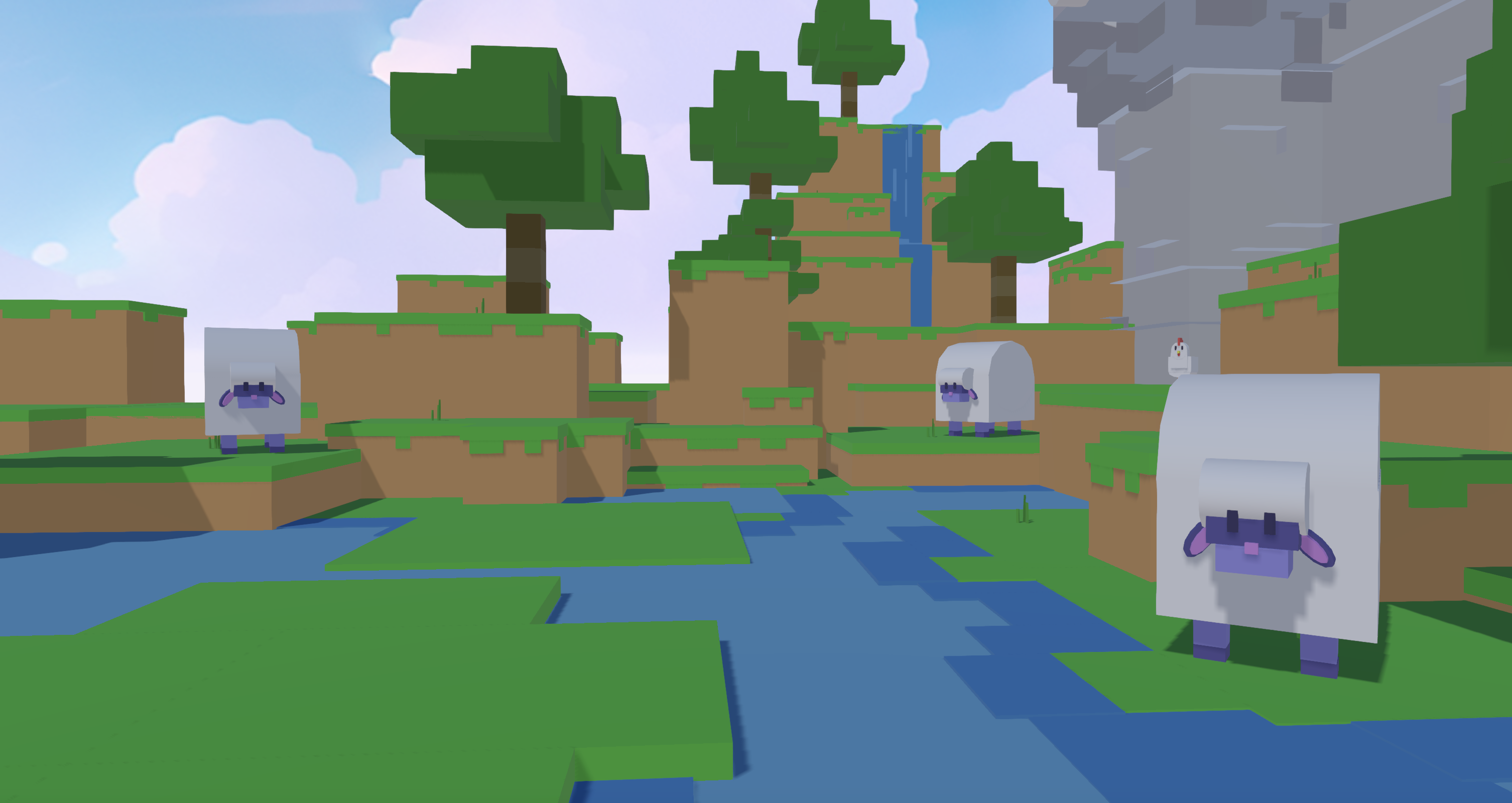
For common game objects like crates, barrels, weapons, and furniture, text-to-3D usually works best. When you care more about a specific silhouette that is hard to describe, sketch-to-3D gives you more control. Both paths feed into the same cleanup pipeline, so you end up with Roblox-ready meshes either way.
Automatic Topology Cleanup and Polycount Control
After Nilo generates a mesh, you control its complexity with a real-time LOD slider instead of opening Blender. LOD, or level of detail, is the technique game engines use to swap simpler meshes as objects move away from the camera. Nilo applies this logic at export so your prop stays within Roblox’s limits.
You drag the slider, watch the triangle count drop in real time, and stop when you hit your target budget. Nilo’s polygon guidance for Roblox import is built into the export flow, so you are not guessing. The platform flags when your mesh fits the budget.
This system replaces manual retopology for most props. Builders in Nilo’s February 2026 survey reported that they could work many times faster on models once they stopped doing that cleanup by hand.
Exporting from Nilo and Importing into Roblox Studio
Nilo exports in FBX and GLB formats. FBX or GLTF/GLB can be used for rigged or animated Roblox models, and GLB bundles textures directly into the file, which helps for static props when you want one download.
Use this export checklist for a clean Roblox Studio import:
- Triangle count within the limits discussed earlier
- Texture resolution at or below 1024×1024 pixels
- Single material per mesh, with a texture atlas if you have multiple surfaces
- UV map inside the 0–1 coordinate space
- Scale aligned with Roblox’s unit system, where 1 stud is about 0.28 meters
- File format chosen based on whether the model is animated or static
- Textures bundled or stored in the same folder as the mesh file
In Roblox Studio, open the 3D Importer from File, then Import 3D, and pick your exported file. If the import finishes without errors, your prop is ready for use. Nilo’s safeguards handle scale, material count, and pivot alignment before export, so most imports succeed on the first try. Export your first game-ready prop in Nilo’s free beta.
Common Roblox Import Errors and Simple Fixes
Three issues cause most failed Roblox imports: wrong scale, too many materials, and misaligned pivot points. When you know these patterns, you can avoid them or fix them quickly.
Scale: Previously FBX exports from Blender to Roblox required a Scale of 0.01 due to unit mismatch, but since June 2026 real-world units now import at correct scale under the updated 25:7 conversion. Nilo applies the correct scale automatically in its export settings.
Material count: Roblox allows only one material per mesh. If your prop uses several surface types, you need to combine them into a single texture atlas before export. Nilo consolidates materials during export so you do not have to manage that step manually.
Pivot points: A misaligned pivot makes props snap to strange positions when you place them in Studio. Nilo sets the pivot at the mesh origin by default, which matches Roblox’s expected behavior for MeshParts.
Comparing Nilo, Meshy, and Roblox Studio Tools
| Tool | Generation Time | Auto Retopology | Roblox Limit Compliance | Browser Access |
|---|---|---|---|---|
| Nilo | Seconds to minutes | Yes, real-time LOD slider, no Blender required | Polygon guidance and export safeguards tuned for Roblox | Yes, runs in the browser |
| Meshy | 10–60 seconds to generate, plus 1–4 hours of manual refinement | Partial, triangle slider helps but cleanup is often still needed | Roblox target option exists, but you still need to double-check | Yes, browser-based |
| Roblox Studio built-in tools | Minutes to hours, depending on complexity | No, you model everything by hand | Native parts avoid import limits | No, requires a desktop install |
Nilo stands out here because it combines browser-based generation and automatic cleanup in one flow. You remove the Blender step that Meshy often still needs and avoid the install requirement that comes with building everything directly in Roblox Studio.
Speed Benchmarks That Matter When You Build
In Nilo’s February 2026 survey, aspiring builders and already builders like you reported generating and placing props in 15 to 20 seconds using text-to-3D. The full loop, from generation through LOD cleanup, export, and Studio import, usually stays under five minutes for standard props such as crates, weapons, and furniture.

The traditional Meshy, Blender, and Studio chain looks very different. For small projects with several characters, that workflow can demand hundreds of production hours. Even a single prop can pick up 30 minutes or more of Blender retopology. At that pace, building a full game environment takes days instead of hours.
In a documented 48-hour Roblox game jam, a technical artist generated 30 AI assets using Meshy. Nilo’s integrated pipeline aims for similar or faster output without asking you to install a separate desktop app for cleanup.
Frequently Asked Questions
Can AI generate Roblox models?
AI tools can generate 3D meshes from text prompts or reference images and export them in formats Roblox Studio accepts, such as FBX, OBJ, and GLB. The key factor is whether the tool automatically cleans up meshes for Roblox’s limits or leaves that work to you. Tools that rely on Blender for retopology add a lot of time. Nilo’s pipeline handles cleanup in the browser before export, so the file you download already fits Roblox’s import budget.
Can ChatGPT create a 3D model?
ChatGPT and similar language models can describe 3D objects, write code for procedural geometry, or help you brainstorm concepts. They do not output game-ready 3D mesh files. To create an actual FBX or GLB prop that imports into Roblox Studio, you still need a dedicated 3D generation tool. Platforms like Nilo take your text prompt and return a downloadable, optimized 3D file.
Do I need Blender to create Roblox props with AI?
You only need Blender when your AI tool exports meshes that break Roblox’s triangle limits or have messy topology, which happens often with general-purpose generators. If your AI tool includes automatic retopology and a polygon reduction slider, you can skip Blender for most standard props. Nilo’s LOD system handles that cleanup in the browser. For very complex assets or advanced rigging, Blender still helps, but it no longer needs to sit in the middle of every workflow.
What file format should I use to export props to Roblox?
Use the format guidance from the export section above. The main question is whether your prop needs animation or stays static. Animated or rigged models usually go out as FBX, while static props often work best as GLB. Whatever you choose, follow Roblox’s limits on triangle count and materials, and keep textures with the mesh file.
Is Nilo free to use for Roblox builders?
Yes. Nilo is in open beta and free to use. You receive 1,000 Nilo Bits each month, which power AI generation, export, and creation features. Many core building tools use no Bits at all. Everything runs in the browser, so you do not need installs, downloads, or high-end hardware. You can generate props, clean them up with the LOD slider, and export straight to Roblox Studio without spending a bunch of money.