Written by: Nuno Leiria, Founder & CEO @ Nilo
Key Takeaways
- ForgeGUI runs in your browser and turns text prompts into visual assets like thumbnails, icons, and UI layouts. ForgeUI lives inside Roblox Studio and speeds up layout and scaling while you build.
- ForgeGUI exports transparent PNGs that you import into Studio yourself. ForgeUI works directly in your existing Roblox Studio workflow with no extra export step.
- Neither ForgeGUI nor ForgeUI handles 3D asset generation, cleanup, or rigging, so you still need another tool when your GUI uses 3D elements like character previews or weapon models.
- Roblox has strict rules for 3D imports, including triangle limits, UV mapping, and frozen transforms. Skipping retopology on AI meshes often causes failed imports and laggy games.
- Join Nilo to generate, clean up, rig, and export Roblox-ready 3D assets in seconds without Blender or manual mesh fixing.
ForgeGUI vs ForgeUI: Quick Side‑by‑Side View
| Feature | ForgeGUI | ForgeUI (Studio Plugin) |
|---|---|---|
| Where it runs | Browser-based at forgegui.com | Inside Roblox Studio |
| Pricing | Free tier, paid plans for higher volume, 3–5 credits per generation depending on asset type | Available on the Roblox Creator Store, pricing depends on the specific plugin listing |
| Export format | Transparent PNG, with recommended power-of-2 sizes like 128, 256, 512, or 1024 px | Direct Studio integration, no separate export file |
| Roblox Studio compatibility | Import PNGs manually into Studio as image assets | Native, operates inside Studio |
| 3D asset output | Includes a 3D Creator tool | No, focused on 2D UI layout |
| Commercial rights | Full commercial rights on paid generations, free-tier generations may enter the public Asset Catalog | Governed by Roblox Terms of Service |
Stage 1: What ForgeGUI Gives You and What It Costs
ForgeGUI has attracted over 102K users as of June 2026 by focusing on fast text-to-asset generation. You get tools like GUI Creator, Icon Studio, Thumbnail Creator, Texture Studio, Character Studio, Animation Studio, Effect Studio, Music Studio, a Rosetta Stone translation tool, and Forge Code for game code generation.
The free tier lets you try everything without paying, but you should understand the privacy tradeoff before using it for commercial work. Paid plans unlock higher volume at 3–5 credits per generation depending on asset type, and those paid generations stay private by default. Free-tier generations can enter ForgeGUI’s public Asset Catalog after you accept a catalog notice, which means other creators might use your designs.
The main tradeoff is output type. ForgeGUI gives you PNG images, not live Roblox UI instances. You still build the ScreenGui, Frame, and TextLabel structure yourself in Studio, then plug the images in. That keeps visual creation fast, but the coding layer stays in your hands.
Some tools handle this differently. For example, Bloxsmith generates Luau code with real image assets injected straight into StarterGui. You should decide whether you want ready-to-use UI code or just visuals before you start spending credits.
One practical tip from the ForgeGUI community helps a lot. Prompt for individual elements like button frames, background frames, and item slot frames as separate transparent PNGs. You then stack and arrange them in Studio, instead of slicing one big image later.
Stage 2: What ForgeUI Speeds Up Inside Studio
ForgeUI runs as a Roblox Studio plugin, so you stay inside your normal building environment. Its main value is speed while you work in Studio, with a shortcut bar for common UI actions and SmartScale tools that resize and align elements without manual math.
The big difference from ForgeGUI is context. Studio-native plugins can see your live Explorer hierarchy, so they know what already exists in your game. That makes ForgeUI strong for tweaking and extending UI systems you already built.
Studio plugins still have limits. In-Studio plugins cannot build full Roblox games for you. They help with specific elements, not entire multi-script systems. When you start planning complex multi-screen flows, 3D elements inside your UI, or assets that need retopology, you need tools outside Studio.
Stage 3: Checklist Before You Import Assets to Roblox Studio
Roblox enforces strict technical rules for both PNG images and 3D models, and skipping checks usually costs you time later. You save hours by running through this list before every import.
Use this checklist before every import:
- Triangle count: Roblox caps individual meshes at around 10,000 triangles for Batch Import and up to 21,000 triangles for single Import 3D. Humanoid character models should stay under 10,000 triangles excluding accessories. Check the count before export, not after a failed upload.
- File format: Use FBX for rigged or animated models, OBJ for simple static geometry, and GLB when you need textures bundled into one file.
- Texture resolution: Textures must be PNG, JPG, TGA, or BMP with a maximum resolution of 1024×1024 pixels. Each mesh supports only one material, so plan a single texture atlas that covers all surfaces.
- UV mapping: UV coordinates must use one UV set inside the 0–1 space. UV mapping means projecting a 2D texture image onto your 3D mesh.
- Scale and orientation: Roblox uses a scale where 1 stud is about 0.28 meters, with characters facing positive Z and standing upright along positive Y. Freeze all transforms before export.
- Bone influences: Rigged meshes need each vertex influenced by no more than 4 bones, with all bone transforms frozen at scale 1,1,1 and rotation 0,0,0.
- File size: GLB files must stay under Roblox’s 20 MB upload limit. Remesh or decimate before export if your file is too large.
- LOD consideration: LOD means Level of Detail, where the engine swaps in simpler meshes as objects move away from the camera. For AI-generated assets, you should retopologize and clean LOD0 first, because messy topology at the highest detail level spreads artifacts through every LOD.
The most common failure with AI meshes comes from skipping retopology on LOD0. Running auto-LOD on a non-retopologized AI mesh is one of the most frequent LOD mistakes. It crushes silhouettes and creates visible glitches at every distance.
Stage 4: Filling the 3D Asset Gap in Your GUI Workflow
Those technical requirements show why 3D assets need more than quick generation. They need cleanup and optimization before they behave well in Roblox. ForgeGUI and ForgeUI both support 2D GUI work, but your interface often needs 3D pieces like weapon previews, character models, or prop showcases that still pass Roblox’s performance checks.
Nilo stands out as a tool that fills this gap. Nilo runs in your browser and focuses on Roblox creators like you, covering the full 3D asset pipeline so you can generate, clean up, rig, and export without opening Blender.

Nilo’s real-time retopology removes the usual retopology grind. Instead of spending half an hour fixing a messy AI mesh in Blender, you get clean topology and Roblox-friendly polycounts automatically. The LOD system adjusts polygon counts on the fly so your assets stay inside Roblox’s 10,000–20,000 triangle caps. You can rig and animate with one click, which normally takes days in pro tools, and your character becomes ready for animation in seconds.

In Nilo’s February 2026 survey with builders, 93% said they would recommend Nilo to a friend and 82% rated their experience as “Awesome” or “Good.” Many describe the time savings clearly: “I do not have to spend hours on 3D modeling the simplest things, now I can use Nilo and do it in 15 seconds.”
Join Nilo’s open beta and try building and playing for free.
How You Can Judge Any GUI or Asset Tool
You make better choices when you judge tools by how they fit your Roblox workflow, not just by flashy demos. Use these checks whenever you try a new GUI or asset platform.
- Export quality: Confirm that exports match what Roblox Studio accepts. For images, look for transparent PNG with power-of-2 sizes. For 3D assets, check for FBX, OBJ, or GLB output with correct scale and frozen transforms.
- Polygon limits: AI-generated 3D assets often exceed Roblox’s triangle caps. Check whether the tool includes decimation or remeshing, or whether you will fix every mesh in Blender yourself.
- Topology quality: Messy AI meshes with uneven geometry and “melted” surfaces cause issues at every stage. Raw AI output often has uneven topology that spreads artifacts through the whole LOD chain. Ask if the tool retopologizes for you or leaves that work on your plate.
- Roblox Studio compatibility: Test whether assets import cleanly without fixing scale, orientation, bone weights, or UVs by hand. Repeated import failures kill your creative flow.
- Commercial rights: Confirm that you hold full commercial rights to generated assets before you publish or monetize them on the Roblox Marketplace.
- Workflow fit: ForgeGUI focuses on visuals and does not handle scripting or playtesting. Map out which stage of your pipeline each tool covers and where you still need other software.
- Manual cleanup time: The real cost of any AI tool is the time you spend fixing its output. Include retopology, UV fixes, and import troubleshooting when you compare options, not just credit prices.
Frequently Asked Questions
What is the difference between ForgeGUI and ForgeUI?
ForgeGUI is a browser-based AI design platform at forgegui.com that turns text prompts into visual game assets like thumbnails, icons, GUI layouts, 3D assets, music, and more. You work in your browser, download PNG or other files, then import those assets into Roblox Studio yourself. ForgeUI is a Roblox Studio plugin that lives inside your workspace and adds UI-building shortcuts and scaling tools to your current projects. ForgeGUI helps you generate assets before you open Studio, while ForgeUI helps you build and adjust UI elements once you are already in Studio. You can use both together instead of treating them as strict alternatives.
Does ForgeGUI export directly into Roblox Studio?
No. ForgeGUI exports UI assets as transparent PNG images with recommended power-of-2 sizes like 128, 256, 512, or 1024 pixels. You then import those PNGs into Roblox Studio as image assets and build your ScreenGui, Frame, TextLabel, and other UI instances yourself. ForgeGUI covers the visual layer, and you handle the functional UI code and hierarchy in Studio. If you want visuals and Luau code generated together, you can look at tools like Bloxsmith, which injects production code with real image assets directly into StarterGui through a Studio plugin.
How many triangles should my GUI assets stay under?
Triangle limits do not apply to flat 2D GUI images like PNGs. They matter for 3D meshes that appear in or around your interface. For 3D meshes embedded in your GUI, follow the same triangle limits from the export checklist: 10,000–21,000 triangles depending on import method, with humanoid character models staying under 10,000. If you use AI-generated 3D assets for things like weapon previews, check triangle counts before export and use remesh or decimation tools if needed. Nilo’s built-in LOD system handles this automatically by adjusting polygon counts to match Roblox’s caps.
Can Nilo help with 3D elements that appear in my GUIs?
Yes. Nilo is a browser-based AI platform for Roblox creators that generates, cleans up, rigs, and exports 3D assets without Blender. If your GUI includes 3D elements such as character previews, weapon models, or prop showcases, Nilo produces those assets with clean topology and Roblox-friendly polycounts. You export as FBX, OBJ, STL, or glTF and import straight into Roblox Studio. Nilo does not create 2D GUI layouts, so it does not replace ForgeGUI or ForgeUI. It fills the 3D gap in your GUI workflow. Survey respondents report generating assets in 15 seconds that previously took hours in Blender, which helped drive the 93% recommendation rate mentioned earlier.

Conclusion: Match Each Tool to the Right Job
You clear up the ForgeGUI vs ForgeUI confusion once you see where each tool fits in your process. ForgeGUI generates visual assets in your browser before you open Studio. ForgeUI speeds up layout and scaling while you are already building inside Studio. Neither one manages the full 3D asset pipeline, which is where many aspiring builders or already builders like you hit triangle limits, messy AI meshes, and failed imports.
When your GUI needs clean 3D assets such as character models, props, or weapon previews, Nilo fills that gap. The automated retopology and rigging features discussed earlier mean you spend your time designing instead of fixing polycounts. As one builder said in Nilo’s February 2026 survey, “I like how it feels like a good game engine rather than a vibe coding tool, with easy building and a good focus on being able to export and import content.”
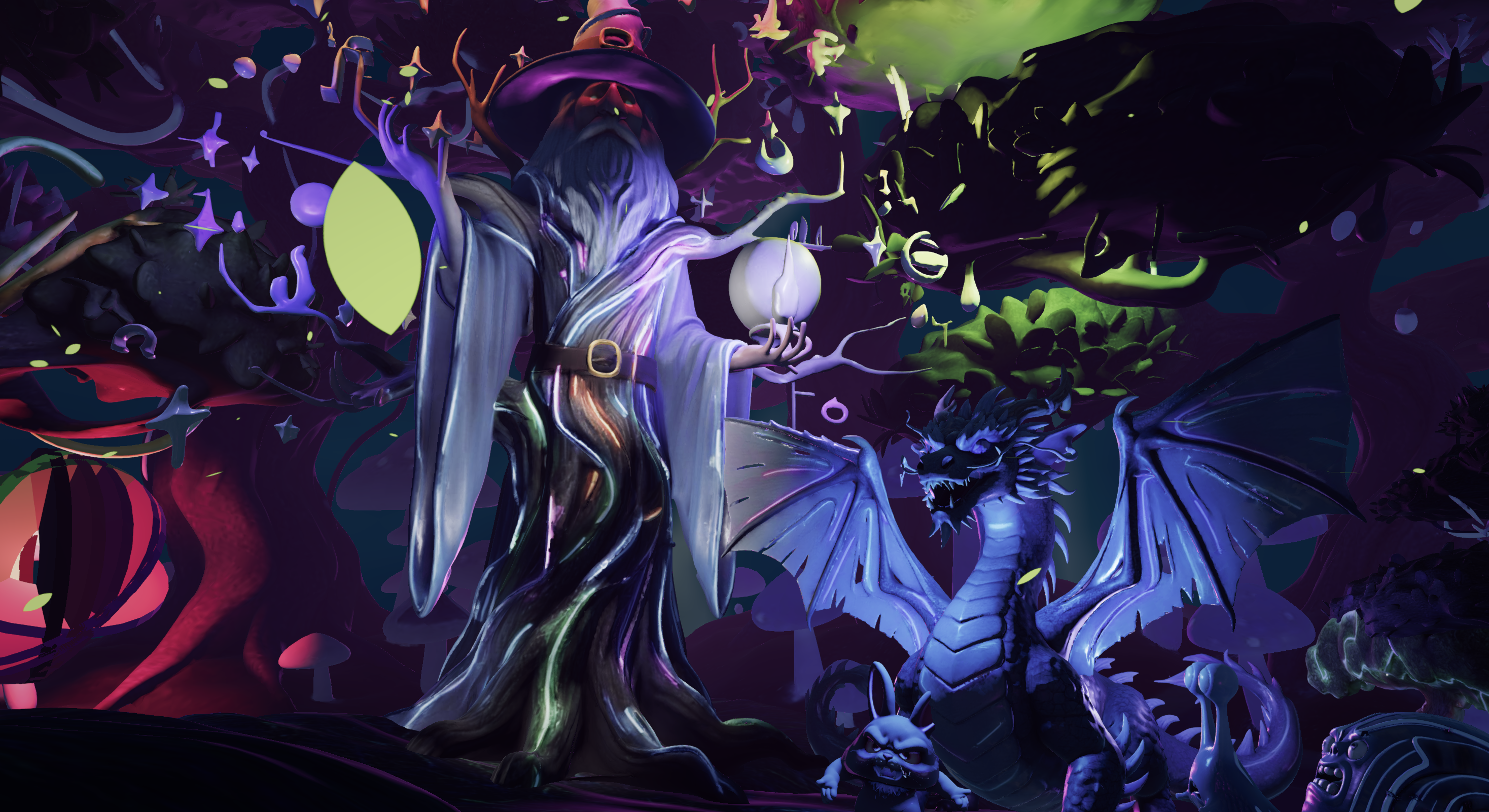
Use ForgeGUI for thumbnails, icons, and UI visuals. Use ForgeUI for in-Studio layout work. Use Nilo for the 3D assets that complete your pipeline.
Join Nilo’s open beta and try building and playing for free.