Written by: Nuno Leiria, Founder & CEO @ Nilo | Last updated: July 12, 2026
Key Takeaways
- Roblox decals work best as 4096×4096 transparent PNGs, which match platform limits and reduce the chance of rejection.
- You create decals by preparing the file, uploading it through the Creator Dashboard, then using the Asset ID in Bloxburg, Roville, or Studio.
- Decals often get rejected when they include real-world brand logos or confusing details, so avoid trademarks and simplify risky designs.
- An AI-assisted workflow in Nilo keeps everything in one browser tab and automatically handles sizing, transparency, and Roblox-ready exports.
- Use Nilo’s open beta to generate, tweak, and export Roblox-ready decals without bouncing between tools.
Why Custom Decals Change How Your Bloxburg and Roville Builds Feel
A decal is a flat image that you stick on a surface inside a Roblox experience, like posters on walls, logos on floors, or art on furniture. Roblox gives every decal an Asset ID, which is a unique number created after you upload an image. You use that ID to place the decal anywhere in Roblox Studio or inside games like Bloxburg and Roville.
A transparent PNG is an image file where the background is removed, so only your design stays visible. Without transparency, your decal shows a white or colored box around it, which usually looks awkward on walls or custom builds.
Custom decals help your Bloxburg house feel like yours. You can turn them into framed art, neon signs, storefront branding, or themed room decor. When you get this workflow right, your builds stand out and stay published.
Roblox Decal Size Rules You Should Follow
Roblox sets strict technical limits on uploaded images. The standard maximum resolution for Roblox decals is 4096×4096 pixels. Uploading at this size gives you a sharp result without hitting the cap.
Here are the key specs that work well together:
- File format: PNG is strongly recommended because it supports transparency, which JPG does not. Transparency lets your decal sit cleanly on any surface color without a visible background box.
- Resolution: 4096×4096 pixels maximum. Larger files get rejected or auto-downscaled, so starting at this size gives you the sharpest possible result.
- File size: Keep the file as small as you can while keeping it clear. Large files slow down game performance, especially in busy Bloxburg plots where many decals load at once.
Correct resolution helps performance as well as quality. Oversized textures increase memory usage and can cause lag in experiences with many players, which you will notice in crowded neighborhoods and detailed plots.
Step-by-Step: Make Custom Roblox Decals for Bloxburg
- Prepare your 4096×4096 PNG canvas. Open your design tool and set the canvas to the maximum resolution (4096×4096 pixels). Start with a transparent background so you do not need to erase it later.
- Create or generate your design. Draw, import, or AI-generate your image. In tools like Canva, export as PNG with transparency turned on. With AI generators, confirm the output matches the 4096×4096 resolution before you continue.
- Open the Roblox Creator Dashboard. Go to create.roblox.com and log in. Navigate to Development Items → Decals, then click Upload Asset.
- Upload your PNG and grab the Asset ID. Select your file and submit it for moderation. After approval, Roblox assigns a unique Asset ID, which you can see on the decal’s detail page in the Creator Dashboard. Copy that ID.
- Use the decal in Roblox Studio or Bloxburg. In Roblox Studio, add a Decal object to any Part and paste your Asset ID into the Texture property. In Bloxburg, use the in-game decal placement tool and enter the Asset ID when the game asks for it.
- Test your decal in-game. Run a playtest in Roblox Studio or visit your Bloxburg plot. Check that the decal appears correctly, the transparency looks clean, and the image stays sharp at normal viewing distance.
- Fix rejections or Asset ID issues. If Roblox rejects your decal or the Asset ID does not work, use the troubleshooting tips below to adjust your design or confirm the asset status.
AI Decal Workflow That Cuts Out Manual Cleanup
The standard workflow works, but you still juggle canvas sizes, background removal, and exports across different tools. An AI-assisted workflow keeps those steps together so you can stay focused on your build.
Nilo stands out as a browser-based creation platform built for Roblox builders like you. Instead of jumping between Canva, a background remover, and the Creator Dashboard, you can generate, refine, and export Roblox-ready assets inside one browser tab.
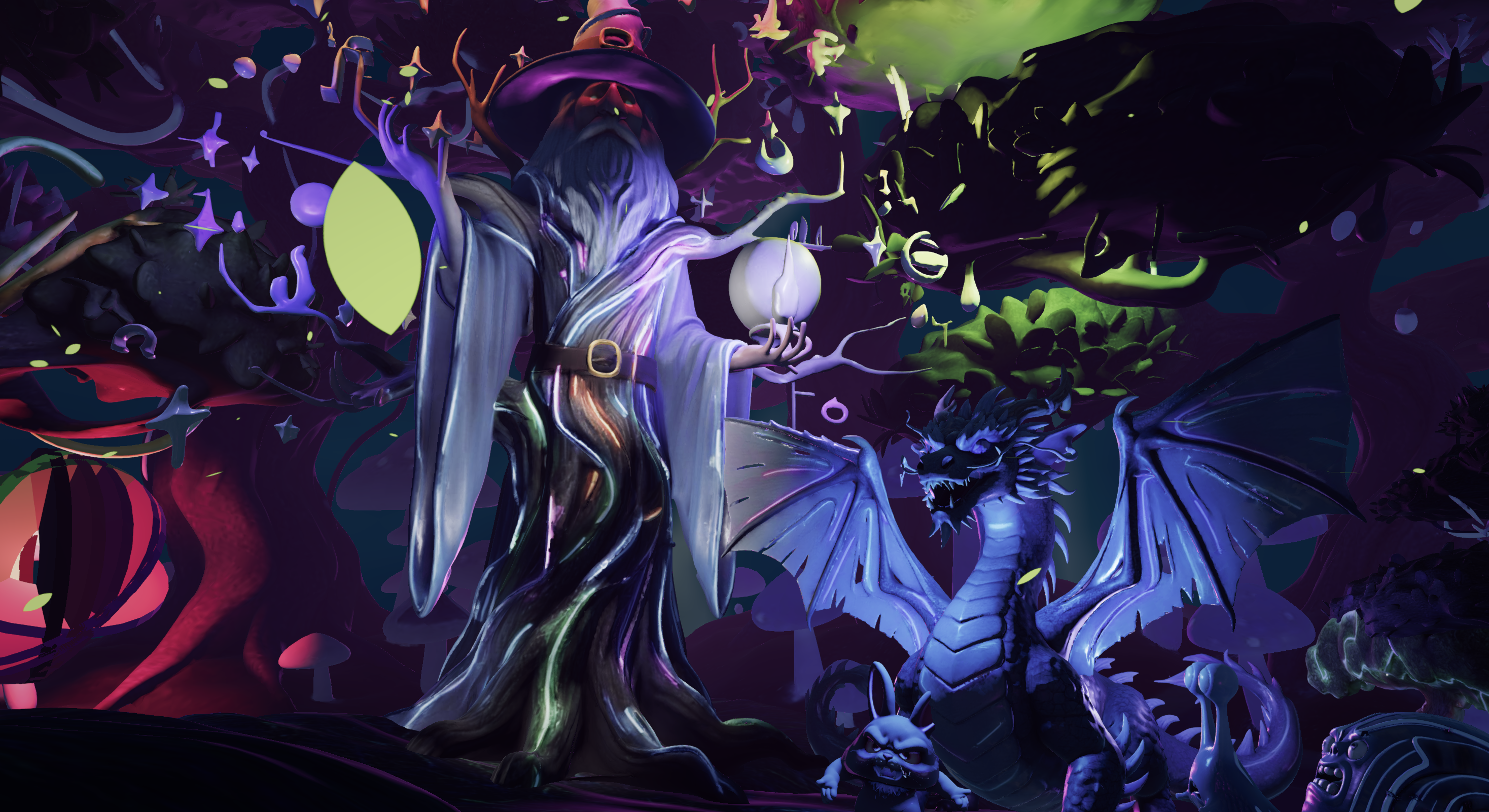
Here is how the AI workflow looks inside Nilo:
- Text-to-asset generation: Type what you want, like a vintage movie poster, a neon logo, or a fantasy crest, and Nilo’s model-agnostic AI layer generates the asset. It pulls from providers such as Meshy, Tripo, Nano Banana, and Cartwheel through one interface, so you get strong results without switching tools yourself.
- Sketch-to-asset pipeline: Draw your idea in 2D, then refine it with AI by adjusting colors, removing backgrounds, or changing the style. After that, you can drag it straight into your 3D world.
- Real-time retopology: Nilo’s LOD system adjusts polygon counts on the fly to respect Roblox’s 20,000-triangle cap. You do not need to count polygons or run cleanup passes in Blender.
- One-click Roblox export: Export your asset with one click at Roblox-ready specs. The file respects 4096×4096 texture limits and clean topology requirements from the start.
In a February 2026 survey of active Nilo Creators, 93% said they would recommend the platform to a friend. One builder summed up the speed change clearly: “I do not have to spend hours on 3D modeling the simplest things, now I can use Nilo and do it in 15 seconds.”
When you compare AI-assisted decal or asset tools, look at these points:
- Whether the tool handles polygon caps automatically or still forces you into Blender for cleanup
- Whether it supports transparent backgrounds without a separate export step
- Whether it keeps you inside a single browser tab or pushes you into constant tool-switching
- Whether it exports at Roblox-compliant resolutions by default
Nilo is designed to answer yes to all four. AI adoption among Roblox creators keeps growing, and 44% of Roblox’s top 1,000 creators already use Roblox Assistant or third-party AI tools for game development, according to Roblox’s April 2026 announcement. Getting comfortable with AI-assisted generation now helps you stay ahead.
Bloxburg and Roville Decal Sizes and Placement Ideas
Bloxburg uses Roblox’s standard decal system, so the same Asset ID workflow still applies. A few simple placement habits can change how polished your builds look.
- Wall art: A 4096×4096 decal on a 4×4 stud wall section fills the space neatly. If you want a smaller framed print, scale the Part down instead of stretching a low-res image.
- Floor logos: Use a square Part sized to match the main area of your room. Transparent PNGs work well here because the floor texture shows through around your design.
- Storefront signage: For signs with text, keep your font large and bold inside the 4096×4096 canvas. Small text compresses badly and becomes unreadable at normal Bloxburg camera distances.
- Layered decals: You can place multiple decals on adjacent Parts to build a mural across a full wall. Keep each decal under the size limit and line up the Parts carefully in Studio before you publish.
- Roville placement: Roville follows the same Asset ID and sizing rules. Decals on curved surfaces can stretch or distort slightly, so test them in-game before you lock in your design.
Fixing Roblox Decal Rejections and Asset ID Problems
Moderation rejections frustrate many creators, but you can avoid most of them once you know the patterns.
Common rejection causes:
- Real-world brand logos: Using real brands on Roblox decals creates a major moderation risk. Any single brand, including alcohol labels, sports sponsors, or trademarked logos, can trigger rejection for copyright or for linking to regulated products. Skip real brand imagery completely.
- AI misidentification: Roblox’s AI moderation often misidentifies harmless images because it relies on single-layer detection instead of multi-layer scanning. A simple meme or stylized character can get flagged even when it breaks no rules. When this happens, simplify the image and try again.
- No clear rejection feedback: Creators usually receive no clear reason when a decal is rejected, which makes appeals tricky. If you think Roblox made a mistake, submit an appeal through the Violations & Appeals portal.
- Archived assets still flagged: Archived Roblox assets stay under moderation and can still be flagged after deletion requests. If you have old decals with risky content, rename them to lower the chance of new flags.
Fixing Asset ID errors:
- If a decal ID shows no image in-game, confirm that the asset is approved in the Creator Dashboard. Pending or rejected assets never render.
- If a game is taken down and you cannot find the problem asset, check the group Audit Log by going to Configure Community → Audit Log. This log records asset version entries and can help you spot which decal caused the issue.
- Confirm that you are pasting the correct numeric Asset ID into the Texture property in Roblox Studio. Do not paste the URL or the asset name.
Frequently Asked Questions
What file format should I use for Roblox decals?
PNG works best for Roblox decals. PNG supports transparent backgrounds, which JPG does not. Transparency lets your decal sit cleanly on any surface color without a visible box around it. Export at a maximum of 4096×4096 pixels for the sharpest result inside Roblox’s upload limits.
Can I make custom Roblox decals for free?
Yes. The Roblox Creator Dashboard is free, and you do not need a paid subscription to upload decals. Nilo is also free to start using, and the Starter tier includes 1,000 Nilo Bits per month for AI generation and export. Many core building features use no Bits at all, so you can generate and export Roblox-ready decal assets without spending a bunch of money.
Can I export Nilo-created assets to platforms other than Roblox?
Yes. Nilo exports to standard 3D formats such as FBX, OBJ, STL, and glTF, which work with Unity, Unreal Engine, Blender, VRChat, and most other 3D tools. Nilo does not lock you in, so you can treat it as an asset creation pipeline and move your work to any platform you like.
Why does my decal look blurry in Bloxburg even though I uploaded at 4096×4096?
Blurry decals usually come from two issues. The Part might be too large compared with the decal’s pixel density, or the image might have been upscaled to 4096×4096 from a smaller original. Start your design at 4096×4096 from the beginning instead of stretching a small image. If the Part is huge, tile several decals across adjacent Parts instead of stretching one decal across the whole surface.
How do I use a custom decal Asset ID inside Bloxburg specifically?
After Roblox approves your decal and you have the Asset ID, open Bloxburg and enter build mode. Pick the wall, floor, or surface where you want the decal, choose the decal placement option, and enter your Asset ID when the game asks. Bloxburg then loads the decal from Roblox’s servers and shows it on the surface. If nothing appears, check that the asset status is “Approved” in the Creator Dashboard, because pending or rejected assets never render in-game.
Conclusion
Making custom Roblox decals for Bloxburg mainly involves three steps. You match the file specs with a 4096×4096 transparent PNG, follow the Creator Dashboard upload flow to get your Asset ID, and learn what triggers moderation so you can avoid rejections early.
The manual workflow gets the job done. If you want to stay in creative flow, generate designs, refine them, and export Roblox-ready assets without constant tool-switching, an AI-native workflow in a single browser tab can feel smoother. Many Nilo Creators describe the change as moving from hours of cleanup to seconds of generation, with topology and export specs handled for you.
Your builds deserve decals that match the way you see them in your head. The tools to do that are available now, and you can start using them for free.
Join Nilo’s open beta and create custom Roblox decals without constant tool-switching.